
Automatic Report Delivery
Normally, sending a completed report to someone means remembering to pick them on the send screen every single time. Report Delivery lets you set that up once: you describe which reports should go out and who should receive them, and from then on iReportSource emails the report PDF automatically as soon as the report is completed.
You set this up per company, and you can be as broad or as narrow as you like — every completed Safety Audit at one location, or only a specific form filled out in a specific area.
Who can set this up
Report Delivery is part of the company settings, so you'll need administrator access to reach it. Anyone can receive the emails, including people outside your company who don't have an iReportSource login at all.
Finding the settings
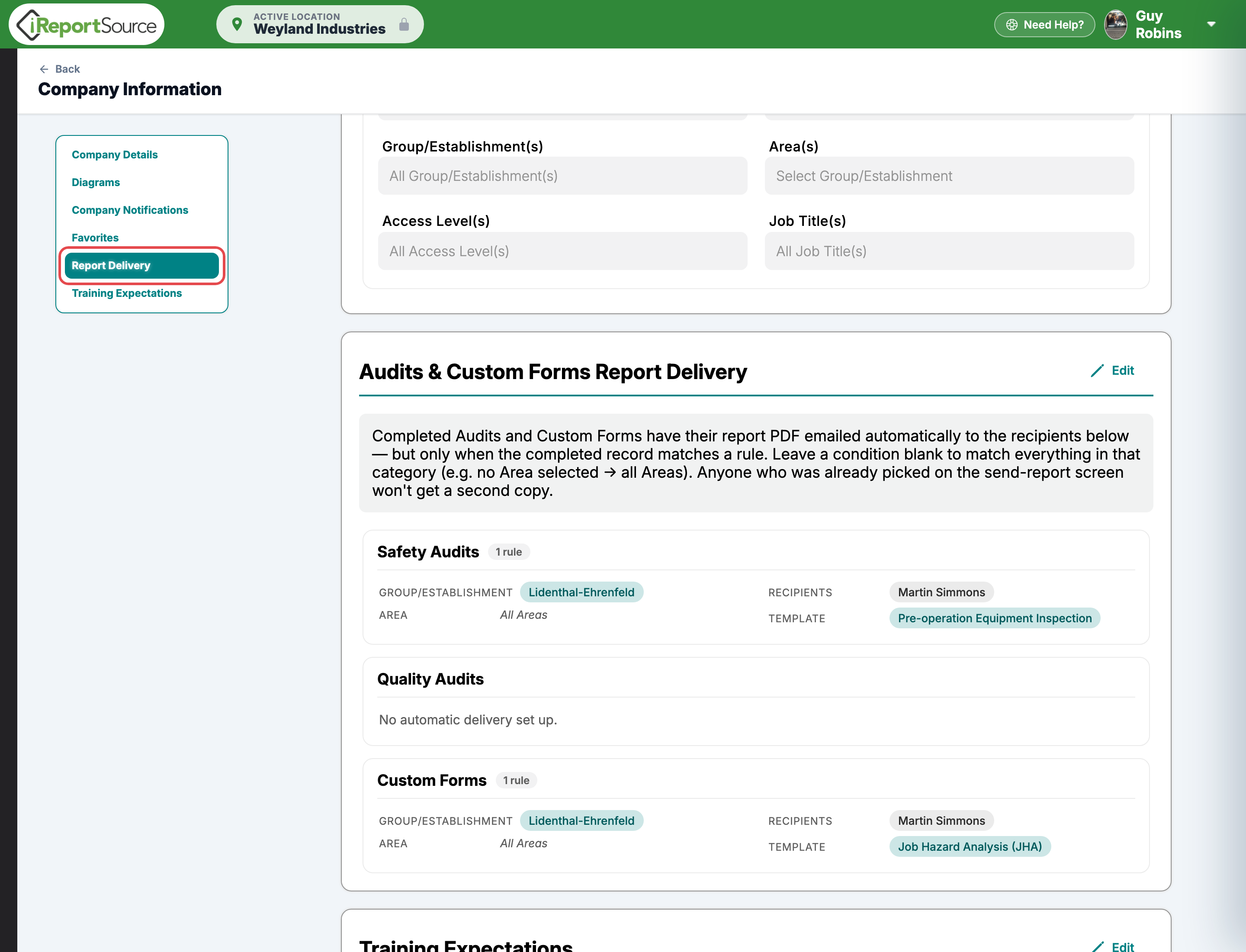
Go to Settings → Company Division.
Scroll to the Audits & Custom Forms Report Delivery card, just below Favorites. You can also jump straight to it using the Report Delivery link in the list on the left of the page.
If your workspace uses its own names for things, the card title follows them — a company that calls audits “Inspections” will see Inspections & Custom Forms Report Delivery.
How the card is organized
The card is split into a section for each kind of report you can set up delivery for:
Safety Audits
Quality Audits
Lockout/Tagout Procedures — only if your company uses Lockout/Tagout
Custom Forms
If your company has turned one of these features off, its section simply won't appear. Each section starts out saying No automatic delivery set up.
Creating a rule
Each entry you create is called a rule. A rule reads like a sentence: when a Safety Audit is completed at the Northside Plant, email the report to Dana and to safety@example.com.
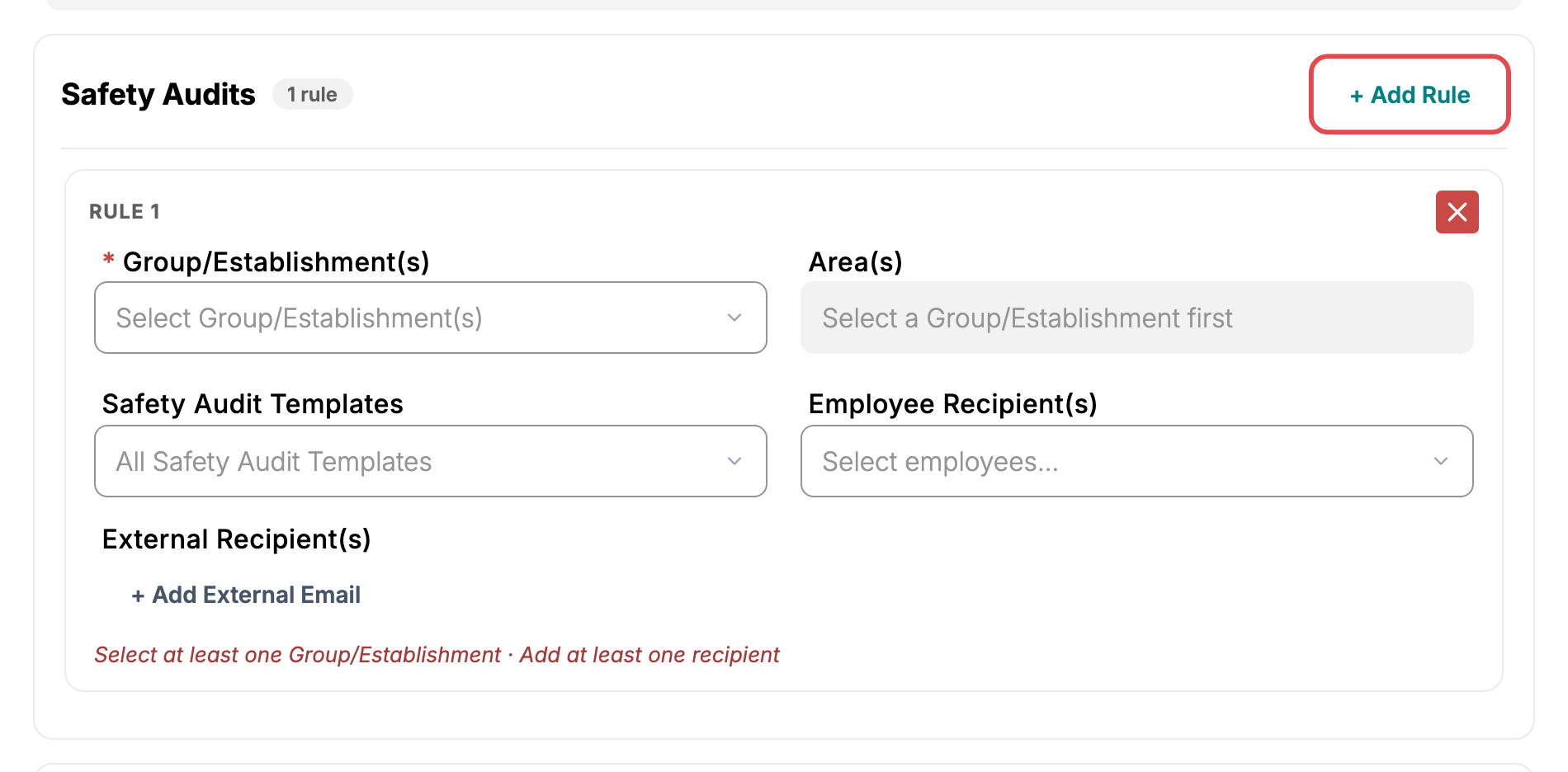
Click Edit at the top of the card. A + Add Rule button appears in each section.
Click + Add Rule in the section for the type of report you want to send.
Fill in the fields described below.
Click Save at the bottom of the card.
Group/Establishment (required)
Which location the completed report has to belong to. You can pick more than one, and this is the only condition a rule can't do without. This uses your workspace's own name for a Group/Establishment.
Area (optional)
Narrows the rule to specific areas within the locations you chose. This field stays locked until you've picked at least one Group/Establishment, and only offers areas that belong to your selection. Leave it blank and the rule covers all areas.
If you later remove a Group/Establishment from the rule, any of its areas are removed from your selection too.
Templates (optional)
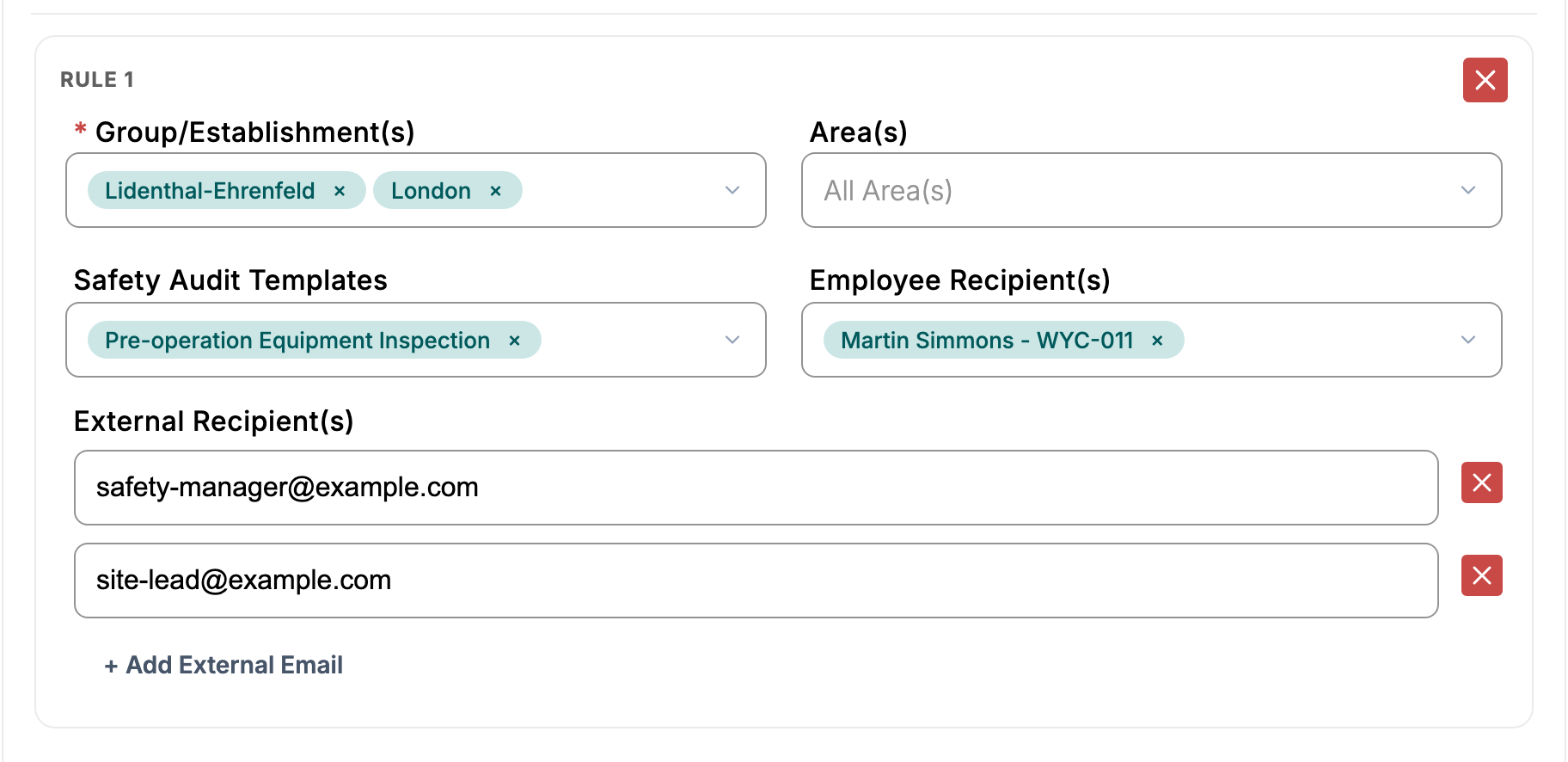
Narrows the rule to reports built from specific templates — for example, only your monthly forklift inspection. Leave it blank and the rule covers every template of that type.
Employee Recipients (optional)
People in your workspace who should receive the report. Deactivated and former employees aren't offered here, because they can't receive email.
External Recipients (optional)
Email addresses for people outside your workspace — a client, an insurer, a contractor. Click + Add External Email to add a row, type the address, and use the red × beside a row to remove it. Add as many rows as you need.
Leaving a field blank means “all of them”
This is the part worth remembering. Every field except Group/Establishment is a filter, and an empty filter matches everything in that category.
So a rule with only a Group/Establishment filled in will send every completed report of that type, from every area, built from every template, at that location. Add an area or a template when you want to narrow it down.
Reading your rules back
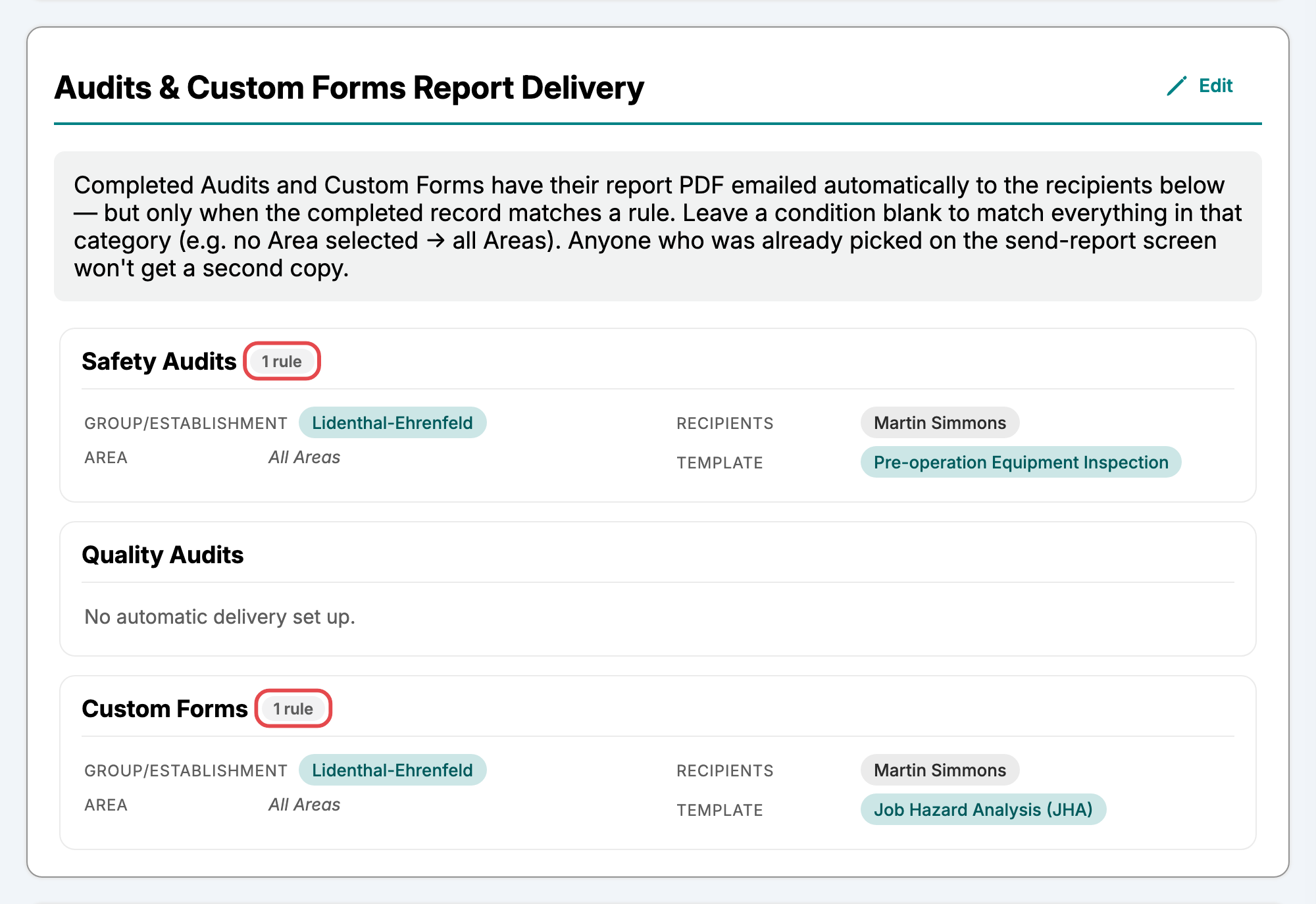
Once saved, each rule is shown as a short summary rather than a form — the location, the recipients, and whichever filters you set. Where you left a filter blank you'll see All Areas or All Safety Audit Templates in italics, so it's clear the rule is deliberately broad rather than incomplete. Each section heading shows how many rules it holds.
When the emails go out
For audits and Lockout/Tagout procedures, the email goes out as soon as the report is completed. Editing and re-saving a report that was already completed doesn't send it again.
For Custom Forms, the email goes out when the form is submitted — unless the form requires approval, in which case it waits until the form is approved. A form that gets rejected sends nothing. This way the copy people receive is always the finished record.
Recipients get the same report PDF they'd get from a manual send, attached to the email. Because nobody chose to send it, the message says the report was sent automatically rather than naming a person.
Nobody gets the same report twice
You can keep using the normal send-report screen alongside your rules. If someone happens to be on a rule and gets picked by hand on that screen, they'll still only receive one copy of that report.
Good to know
A rule needs a Group/Establishment and at least one recipient — an employee or an external address. Save stays unavailable until every rule on the card meets that, and the card tells you how many rules still need attention.
An email address that isn't valid is highlighted in red and blocks saving, rather than being quietly dropped. An external row you leave completely empty is simply discarded when you save.
A single rule is limited to 25 recipients. If you need to reach a longer list, use a distribution address maintained by your email provider.
Rules only ever add recipients. They don't change who is notified through your normal Company Notification Settings, and they don't replace the send-report screen.
Cancel discards every change you've made since clicking Edit, including rules you added and rules you deleted.
Publishing a new version of a Custom Form template doesn't break a rule that points at it — the rule follows the form, not the individual version.