
Custom Form Notifications
Every custom form template decides who is emailed when forms made from it are created, submitted, almost due or past due. You can leave that to each person's own Notification Settings, or name exactly who should hear. You can also add overrides that notify or skip specific people based on how a question was answered. For example: when Is this energized work? is Yes, notify the safety manager.
Where to find it
Open the template in the builder. The settings are in the Form settings panel, under Notifications. Published templates are read-only, so use New Version to make changes (see Building a Custom Form).
Choose who gets the notifications
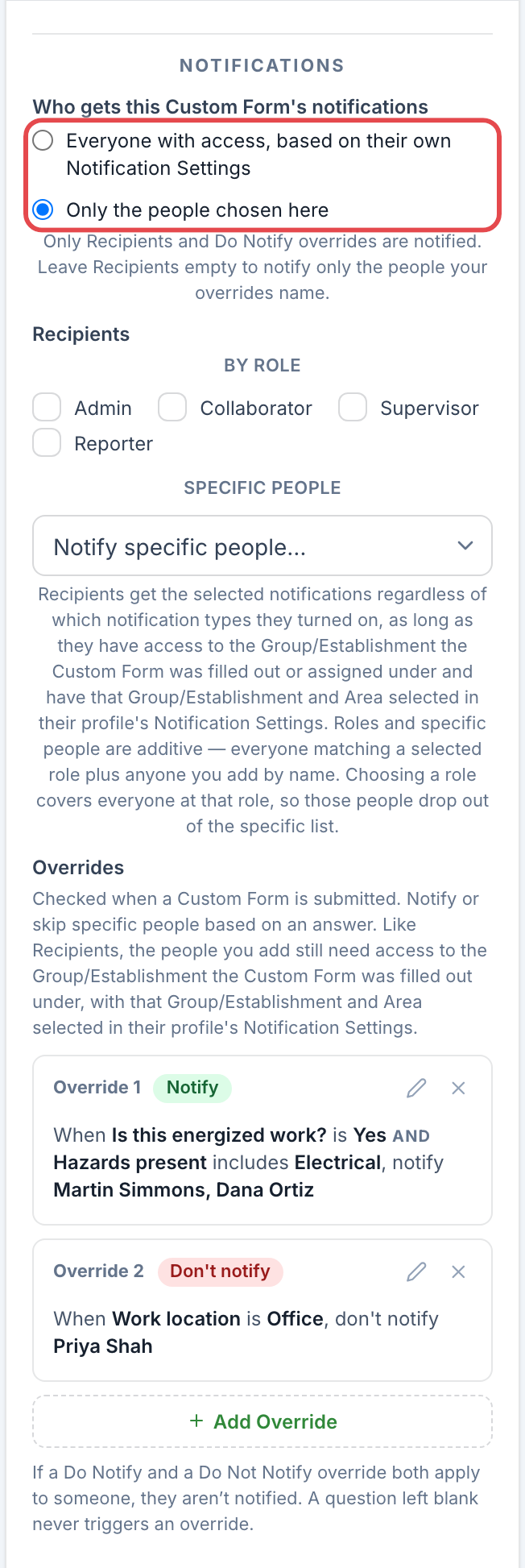
At the top of the section, Who gets this Custom Form's notifications has two options:
Everyone with access, based on their own Notification Settings. This is the default. Everyone with access to the form's Group/Establishment gets the notifications they've turned on in their profile. Overrides can still add or skip people.
Only the people chosen here. Only your Recipients, plus anyone a Do notify override adds, are notified. Pick Recipients By role, as Specific people, or both. Then choose which emails they get under Send these notifications: Created, Completed, 24h before Custom Form Due, and Past Due.
With Only the people chosen here you can leave Recipients empty. The completion email then goes only to the people your Do notify overrides name, and only when their conditions match. Nobody gets the Created, 24h before Due or Past Due emails.
Templates that already named Recipients before this option existed open with Only the people chosen here selected, and keep working exactly as before.
Notify or skip people based on an answer
Overrides look at a submitted form's answers. Each one says: when these answers match, notify these people (Do notify) or don't (Do not notify).
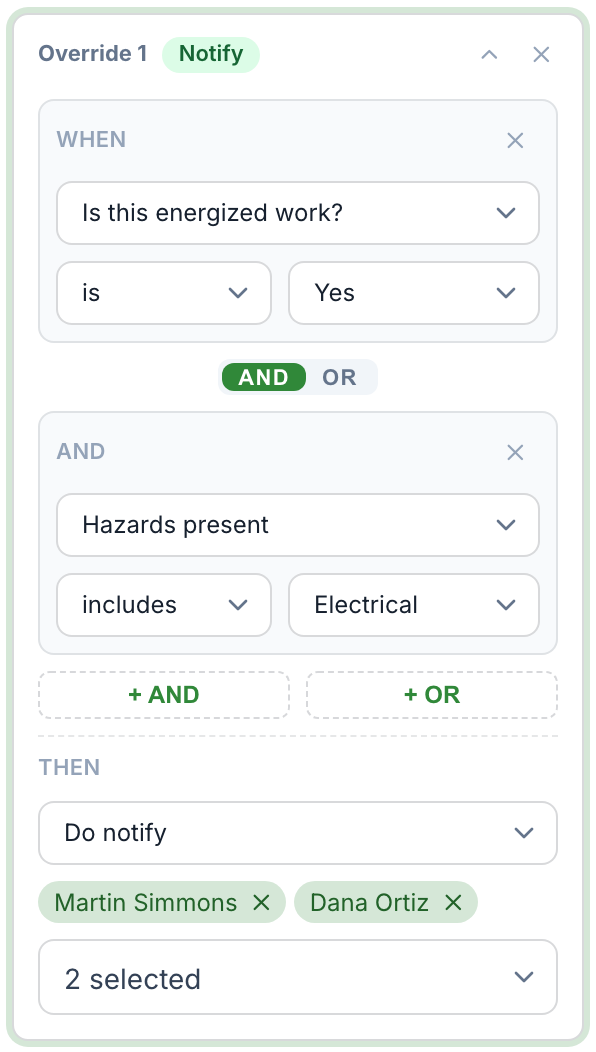
Under Overrides, click Add Override. A new card opens for editing.
Under When, pick a field, choose is or is not, then pick one of the field's options. For multiselect and checkbox fields the choice reads includes or doesn't include.
To check more than one answer, click + AND or + OR. Conditions are checked top to bottom, and you can switch any join between AND and OR.
Under Then, choose Do notify or Do not notify, and add the people.
Click the arrow at the top of the card to close it. The card then reads as one sentence, such as When Is this energized work? is Yes, notify Martin Simmons. Use the pencil to edit it again, or the X to remove it.
Overrides can use any field with a fixed set of options: Yes/No, Yes/No/N/A, dropdown, radio button, multiselect and checkbox. Fields inside a table section can't be used, because they repeat.
How overrides decide who is notified
They only affect the completion email. Overrides run when a form is submitted, because that's when its answers are final. They never change the Created, 24h before Due or Past Due emails. A form that goes on to wait for approval is checked when it's submitted, and again if it's returned for revision and submitted again.
Do not notify always wins. The people notified are your normal audience, plus everyone a matching Do notify override names, minus everyone a matching Do not notify override names. Someone named by both isn't notified, and nobody gets the same email twice.
A blank answer never triggers an override, in either direction. Neither does a question that was hidden by a visibility condition. So is not Yes doesn't match a question that was skipped.
Do notify skips notification types, not locations. People added by an override get the email even if they've switched that notification type off. They still need access to the form's Group/Establishment, or to be an Admin. They also need that Group/Establishment selected in their Profile > Notification Settings, and the form's Area too if they've picked specific Areas. On a confidential form, they also need confidential access.
Direct emails aren't affected. Do not notify only removes people from the completion email. Assignees and approvers still get their own emails, such as “assigned to you” and approval requests.
The person who created the form is never notified about it.
What the builder checks before publishing
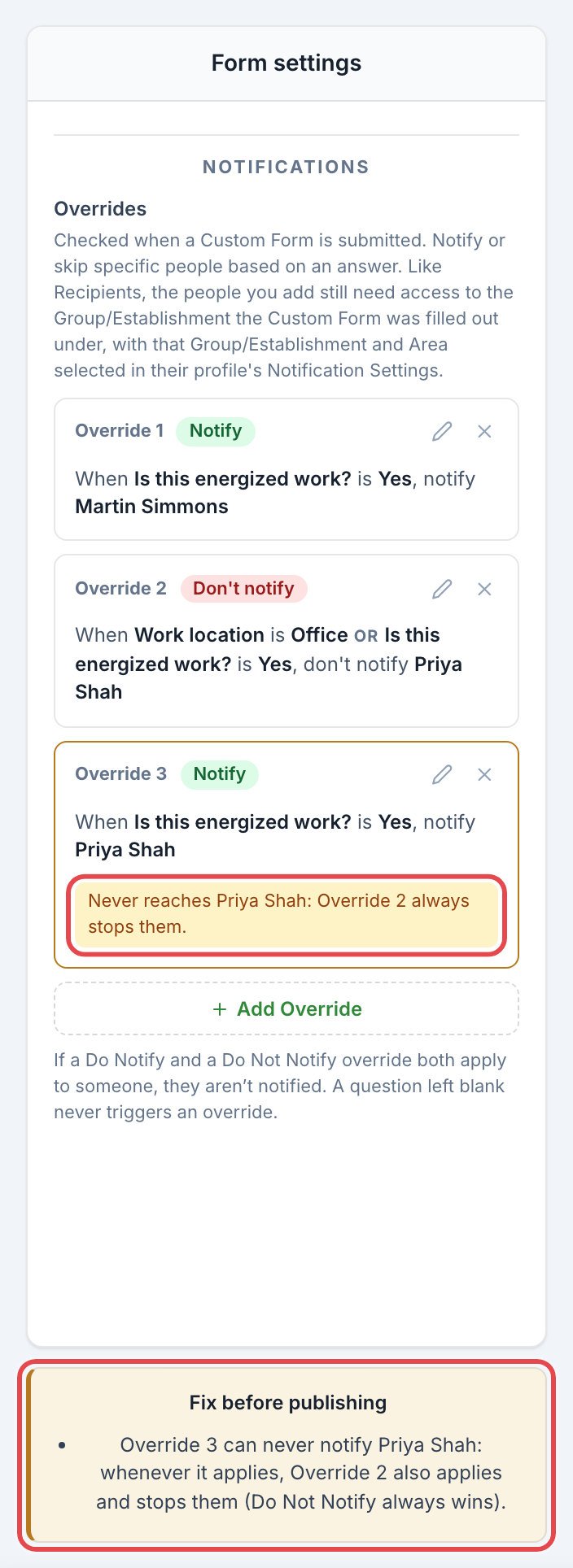
Problems show on the override's card and in the Fix before publishing list. The template can't be published until they're fixed:
An override with no field, value or people.
A field that was deleted, or a value that's no longer one of the field's options because it was renamed or removed.
An override that can never apply, such as is Yes AND is No.
A Do notify that a Do not notify always cancels for the same person. The card reads Never reaches … and names the override that stops them. Overrides that only overlap some of the time are fine: Do not notify wins whenever both apply.
People who are no longer with the company.
Only the people chosen here with Recipients but no notifications selected, or with no Recipients and no Do notify override naming someone who can be notified.
People who have been deactivated, or who aren't on the confidential list for a confidential form, can't be notified either. Their card says so, with a Remove them link.
Good to know
The Do notify people picker leaves out people who already get the completion email. That's your Recipients and everyone at a ticked role, while Completed is one of the selected notifications.
Overrides belong to a template version. Forms started from an earlier version keep that version's settings.
Duplicate and New Version copy the notification settings, overrides included.
If someone named in an override doesn't get the email, check their Profile > Notification Settings first. Picking any Area under a Group/Establishment limits them to those Areas.
Group/Establishment and Area use your workspace's own names for them.