
How to Create a Safety Training Quiz
Updated 5/13/2022
NOTE: Only administrator users have the ability to add/edit quizzes.
Safety Trainings now have the option of giving employees an auto-graded quiz after they have reviewed all training materials. This document will walk admin users through how to create the Quiz and add it to a training.
Sign into iReportSource on the web at https://www.ireportapp.com/login
Choose your location to enter your dashboard
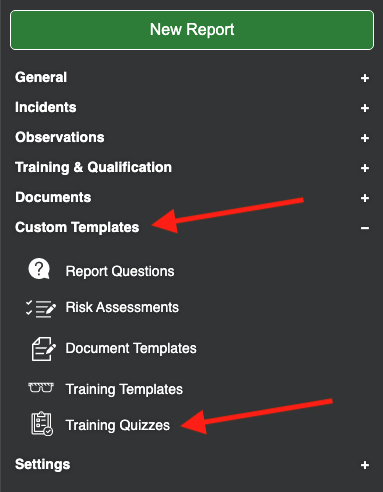
Click on Custom Templates > Training Quizzes:
4. From this page, you can click on existing quizzes if you need to edit/remove/add questions. Or, you can click Page Actions -> Create Quiz to create a new one:
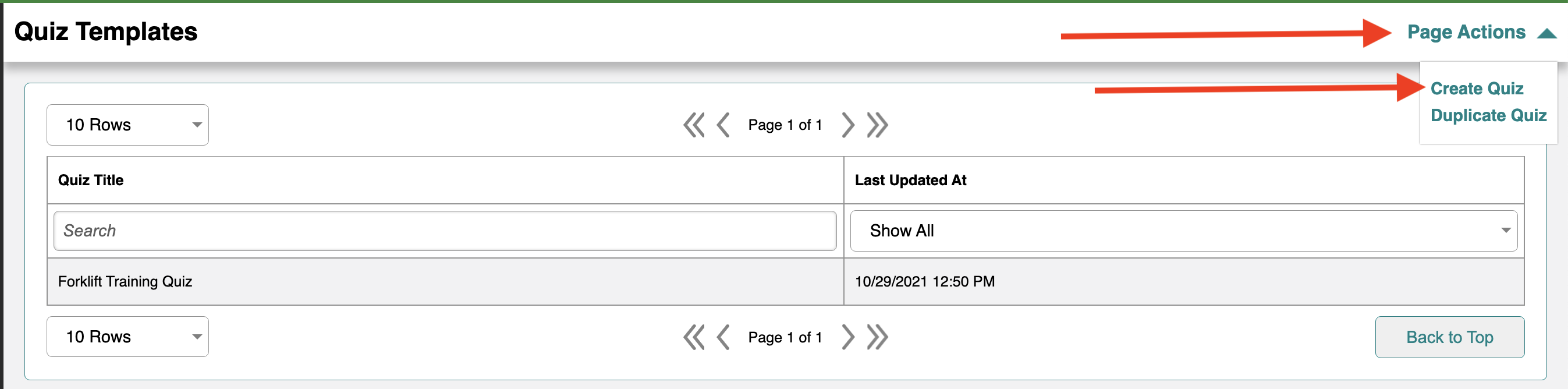
NOTE: You also have the option of Duplicating an existing quiz by clicking on Page Actions -> Duplicate Quiz. All options available while creating a quiz (see below) will be available to edit and change as needed.
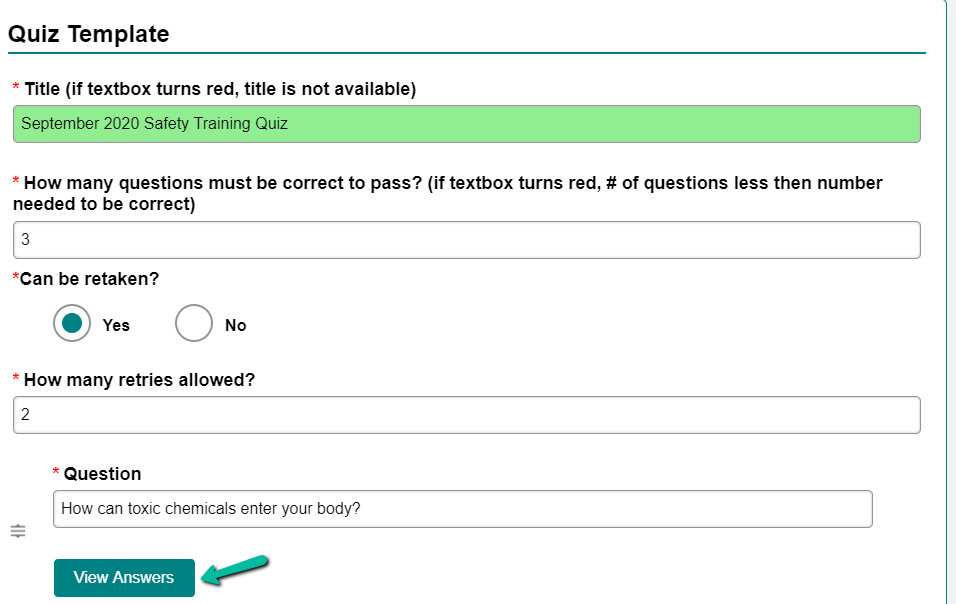
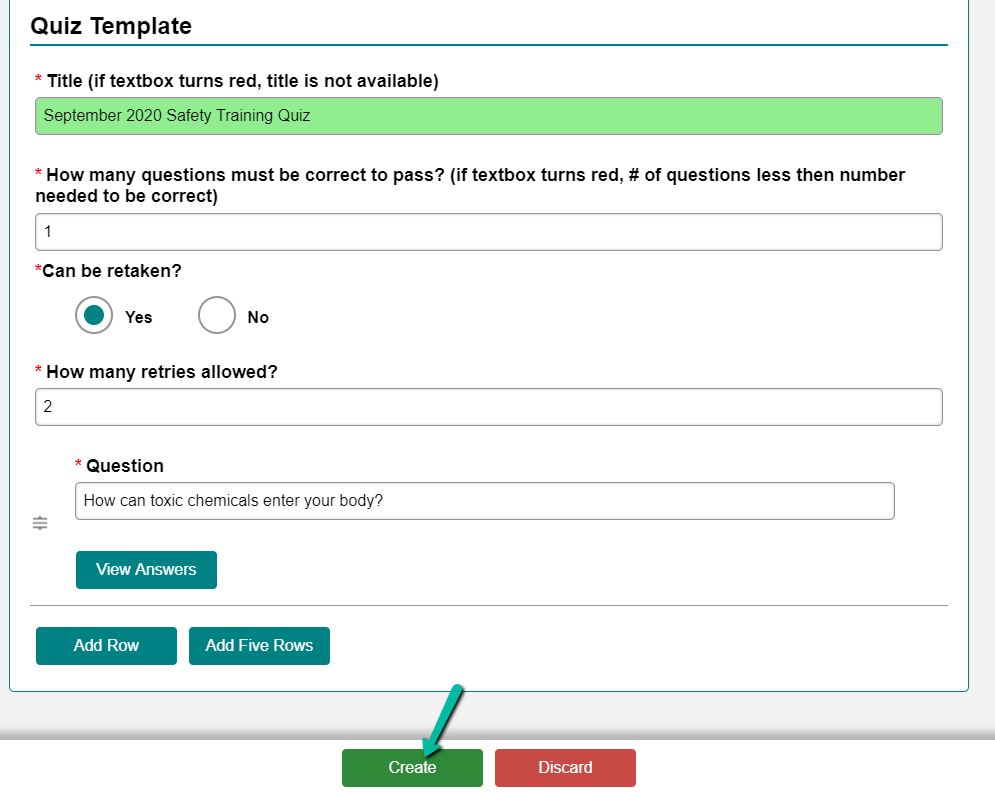
5. To create a new quiz, you will put in the following:
Title
# of questions to earn a passing score (for example, if your quiz has 10 questions and they need to answer at least 8 correctly to pass, you’ll put 8 here)
Can be retaken (choosing yes here means they can attempt more than once. If Yes is checked, another box pops open to ask how many retries are allowed. Enter how many additional attempts you want to give them past the first one).
Question
Type in your question, and then click the Add Answers button to enter the answer choices. On this box you will also check the box next to the correct answer
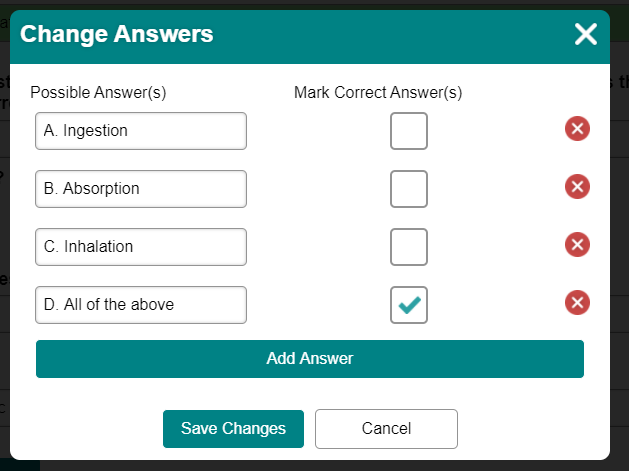
6. Click Save Changes when you have completed entering the answer choices for the question.
7. Click Add Row or Add Five Rows to make placeholders for more questions, and repeat the steps above to add more questions and answer choices.
8. When you have entered all required information, click Create to finish creating the Quiz template:
ADDING A QUIZ TEMPLATE TO A SAFETY TRAINING TEMPLATE
Now that the quiz template is created, it can be added to a Safety Training Template or a custom, one-off training that you’re assigning.
To add to a Safety Training Template:
Go to Custom Templates > Custom Safety Trainings
Choose to edit an existing template, or add a new one
The Quiz for this training drop-down will include all names of quizzes you have created. Choose the appropriate one and it will be attached to this template for all future trainings assigned from this template.
To add to a one-off individual training without using a template:
Go to Documents > Safety Trainings
Click Create Training
Choose Custom Training as the training type
Enter all required fields, and choose the appropriate quiz from the Quiz for this training drop-down menu. All assignees of this training will be presented the quiz after they review the training materials.
NOTE: A Safety Training does not have to contain training materials if a quiz is added. You can just assign the quiz with no materials if you choose.
That’s it! Your quiz has been created, and it has been added to the training template or the individual training.