
Setting Notifications on a Template
Normally, whether someone receives an email about a Safety Audit, a Behavior Observation, a Custom Form and so on depends on what each person has ticked in their own Notification Settings. That works well for general awareness, but it makes it hard to guarantee that a specific group of people always hears about a specific kind of work — you would have to go through each person's profile one at a time.
A template's Notifications section solves that. Set it once on the template, and everything created from that template notifies exactly the people you named, for exactly the events you chose.
Where to find it
The Notifications section is on the create or edit screen for these templates:
Safety Audit, Quality Audit and Lockout/Tagout templates — at the end of the template details card, above the template's sections
Behavior Observation templates — under the title, instructions and confidential checkbox, above the questions
Custom Document templates — at the end of the Document Template card, above the questions
Training templates — at the bottom of the details. Standalone training templates only, not Training Courses.
Custom Forms — in the form builder's Form settings panel, under Notifications. Custom Forms work a little differently; see On a Custom Form below.
Setting it up
Open the template's create or edit screen and find Notifications.
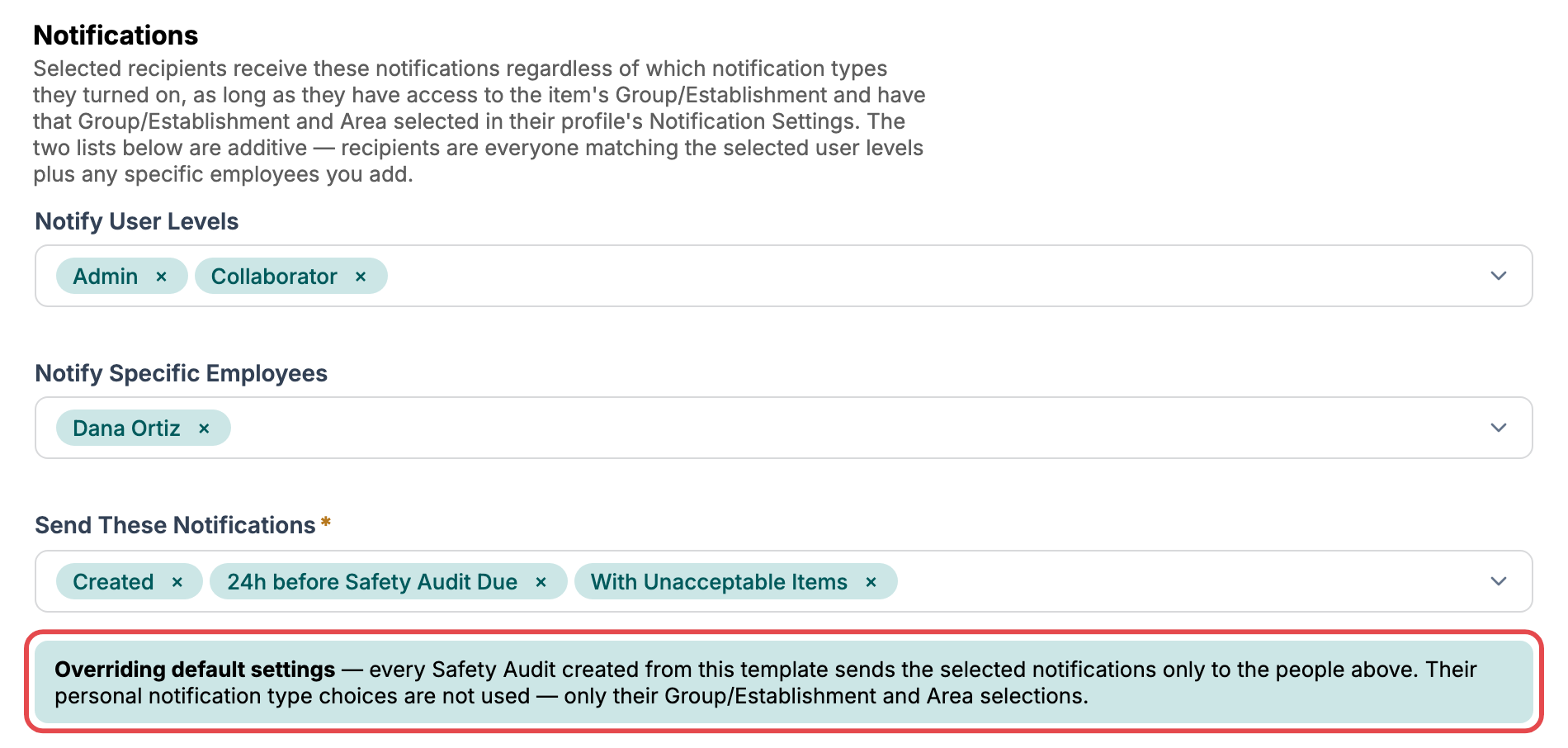
Choose your recipients. You can use either list, or both:
Notify User Levels — everyone at the levels you pick (Admin, Collaborator, Supervisor, Reporter).
Notify Specific Employees — individual people by name.
Choose which notifications to send under Send These Notifications. At least one is required — you cannot save recipients with no notifications selected. Custom Document templates skip this step, because they have only one notification (Created), which is applied automatically.
Save. A blue Overriding default settings note appears whenever the override is switched on, so you can tell at a glance which templates are using it.
To switch the override back off, clear both recipient lists and the selected notifications, then save. The template then behaves exactly as it did before — everyone's own Notification Settings decide who hears about it.
On a Custom Form
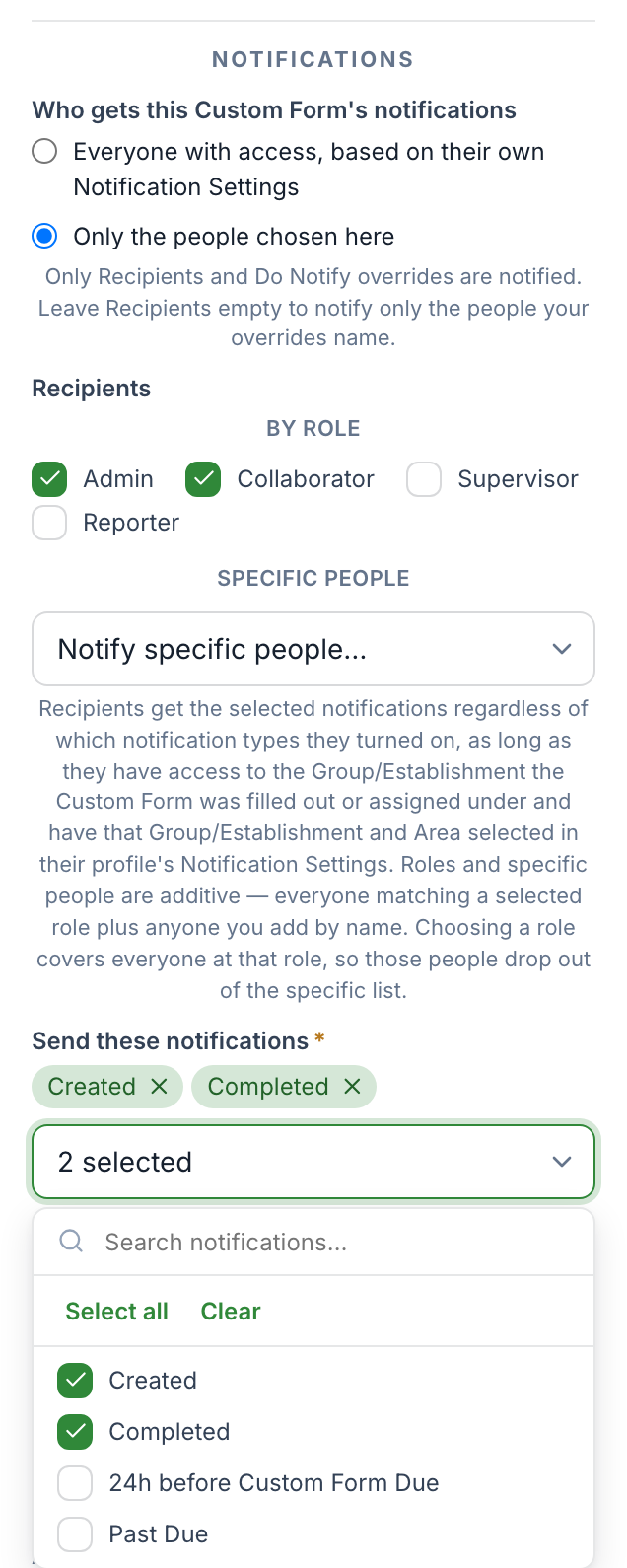
In the form builder, Who gets this Custom Form's notifications decides whether the override is on. Choose Only the people chosen here, pick your Recipients by role, by name or both, then choose which notifications go out under Send these notifications. There is no blue note; the selected option shows the override is on. To switch it back off, choose Everyone with access, based on their own Notification Settings.
Custom Forms can also notify or skip people based on a form's answers. See Custom Form Notifications.
The two recipient lists add together
User levels and specific employees are additive: your recipients are everyone matching the levels you picked, plus anyone you added by name. If you pick a user level, anyone already on the specific list at that level drops off it, since the level already covers them.
How a recipient actually receives the email
Naming someone means their notification type choices are ignored — they get the email even if that particular notification is switched off on their profile. Three things still have to be true:
They have access to the item's Group/Establishment, or they are an Admin. (This uses your workspace's own names for Group/Establishment and Area.)
That Group/Establishment is selected in their Profile > Notification Settings. If the item also has an Area, that Area needs to be selected too. Someone who chose a Group/Establishment but none of its Areas hears about all of its Areas. Someone who has never set up their Notification Settings will not receive these emails.
On a Confidential template, they are also on the company's confidential-access list for that item type.
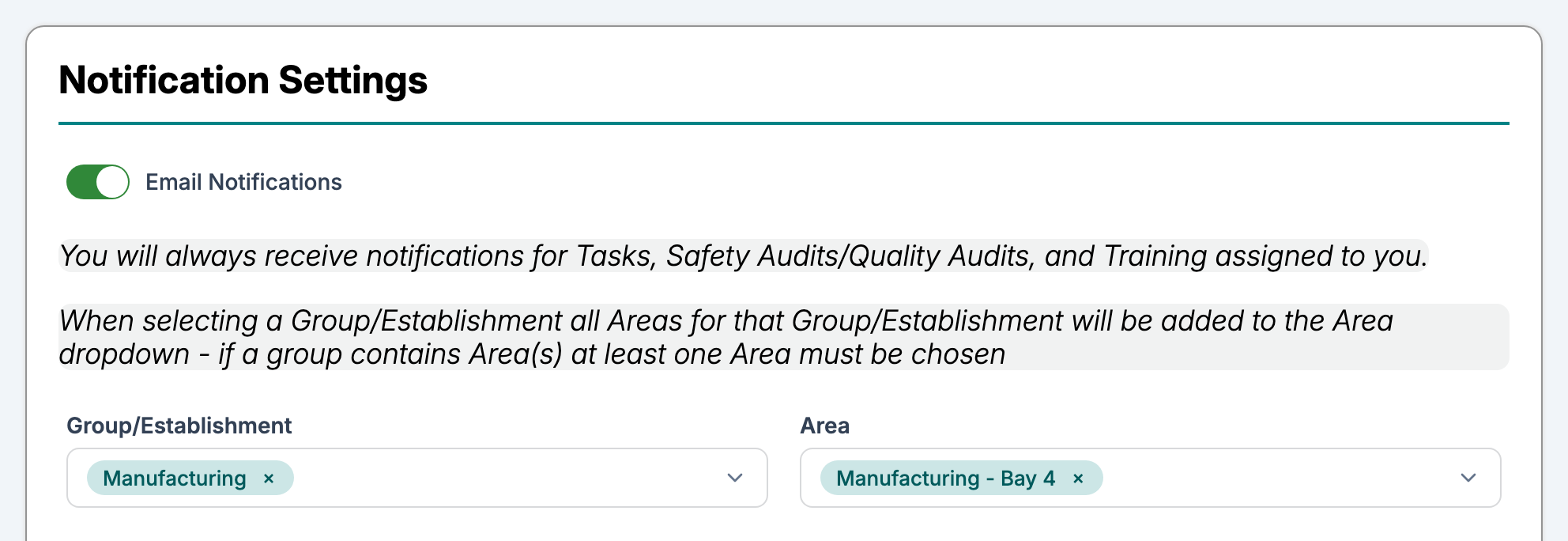
In short: you choose which notifications go out, and they still choose which locations they hear about.
Which notifications you can choose
Safety Audit / Quality Audit / Lockout/Tagout — Created, 24h before Due, Without Unacceptable Items, With Unacceptable Items.
Behavior Observation — 24h before Due, 24h before Corrective Action Due, Corrective Action Created, Corrective Action Past Due, Corrective Action Completed, Submitted.
Custom Document — Created (applied automatically).
Custom Form — Created, Completed, 24h before Due, Past Due.
Training — Created, Quiz Failed, 24h before Due, Due Date Passed, Expiring Within 90 / 60 / 30 Days, Expired.
Confidential templates
Audit, Behavior Observation, Custom Document and Custom Form templates can be marked confidential — the Is this a Confidential …? checkbox on the template, or Mark confidential in the Custom Form builder.
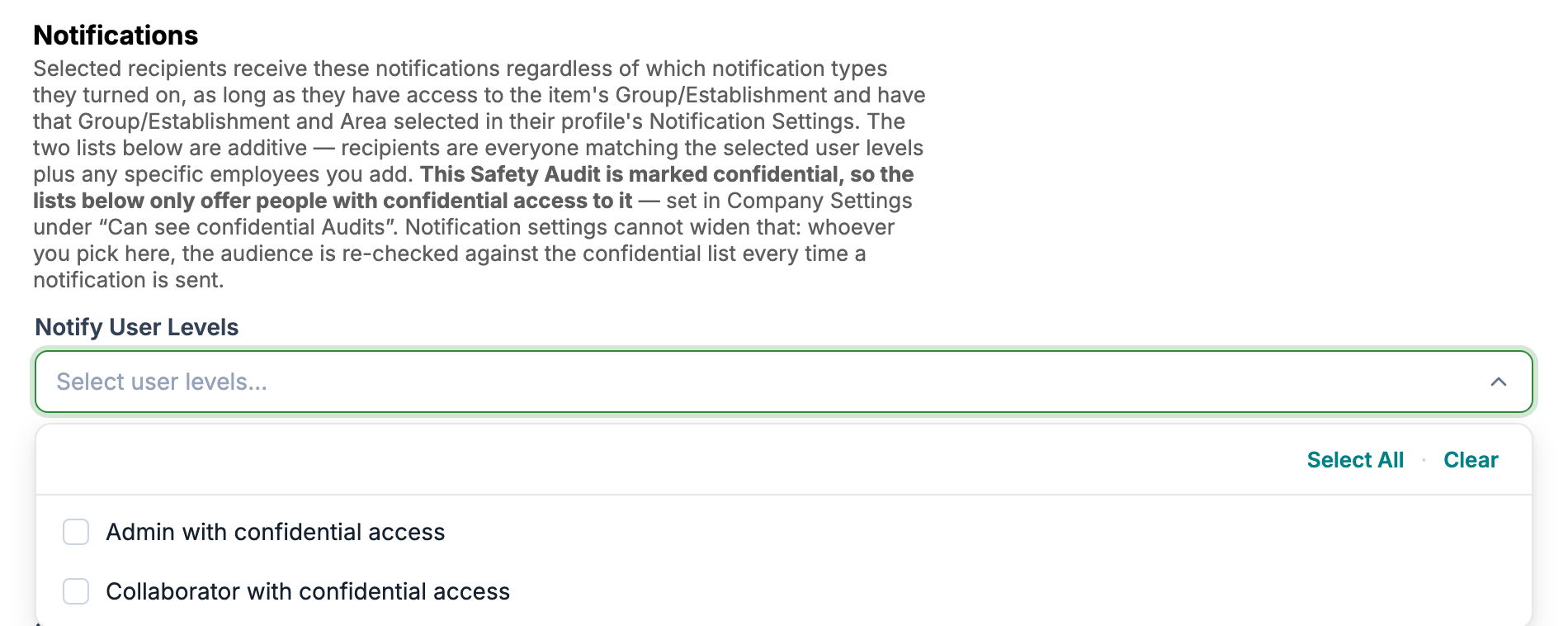
Everything created from a confidential template is confidential, and only the people on your company's confidential-access list for that item type can see it. A template's Notifications section cannot widen that. Whoever you name, the audience is checked against that list every time a notification is sent.
So on a confidential template the recipient lists change to match:
Notify Specific Employees only offers people who have confidential access to that item type.
Notify User Levels only offers the levels those people hold. Only Admins and Collaborators can be given confidential access, so the options are Admin with confidential access and Collaborator with confidential access. That wording matters: choosing a level here notifies the people at that level who have confidential access, not everyone at that level.
If nobody has confidential access to that item type yet, there is no one the template could notify, so both lists are replaced by a note telling you to add people first. Until you do, no one is notified about items made from that template, because only people on the confidential-access list are ever told about confidential items.
If you tick the confidential box on a template that already had recipients, anyone who is not on the confidential-access list is named in a warning with a Remove them link. They are never dropped silently.
The confidential-access lists are set in Settings > Company Division, in the Can see confidential … fields — one for each item type.
Good to know
It is all or nothing. Once a template has recipients and at least one notification selected, it takes over completely for everything made from that template. Only the people you named receive the notifications you chose, and any notification in the list that you did not choose goes to no one. (Audit Corrective Action notifications are not in the list, so they still follow each person's own Notification Settings.) Custom Forms make this an explicit choice instead, under Who gets this Custom Form's notifications (see Custom Form Notifications).
Some people on the item are left out. They get their own direct emails instead ("assigned to you", "past due", approval requests), and this setting does not change those:
Safety Audits, Quality Audits and Lockout/Tagout: the people it is assigned to and the person who created it.
Behavior Observations: the employee observed and the supervisor observing.
Custom Forms: the person who created it, plus the people it is assigned to for Created, 24h before Due and Past Due.
Custom Documents: the person who created it.
Trainings: the people it is assigned to for Created, 24h before Due and Due Date Passed, and the person who failed for Quiz Failed.
Confidential access can lapse after you set the template up. The lists above only offer people who have confidential access at the time you choose them. Anyone later removed from the confidential-access list quietly stops receiving these notifications, and if every recipient you named loses access the notification reaches no one at all — the override is all or nothing, so it does not fall back to people's own settings. If a confidential template's notifications appear to be going nowhere, check that list first.
Audits are matched on Group/Establishment only. Audit notifications do not carry an Area, so a recipient's Area choices do not affect them. Behavior Observations, Custom Forms, Custom Documents and Trainings do use the Area.
Reporters usually will not receive them. Reporters cannot choose a Group/Establishment in their Notification Settings on the web, so picking the Reporter level or naming a Reporter usually reaches no one.
These are emails. A template's Notifications section does not send push notifications to the mobile app.
Changes apply right away. The template's Notifications section is checked each time a notification is sent, so a change also affects items already created from it — for example, their 24h before Due notification. Custom Forms are the exception: each form keeps the version of the template it was created from, so a change applies to forms created after you publish it.