
Completing a Maintenance Work Order (for Service Providers)
When a piece of equipment is due for service, iReportSource can send its maintenance provider a work order by email. That email contains a private link to a simple web page where the provider records what they did and completes the work order. The provider does not need an iReportSource login or account — the link itself grants access, so it works for outside service companies. The same page opens when somebody scans a machine's Maintenance QR code and starts a job on the spot.
This article is written for the person receiving the work order. If you administer equipment, see Setting Up Preventive Maintenance; if you approve completed work, see Reviewing and Approving Maintenance Work. Your own staff who can sign in file the same write-up on a different page — see Performing Maintenance as an Internal Tech.
Opening the work order
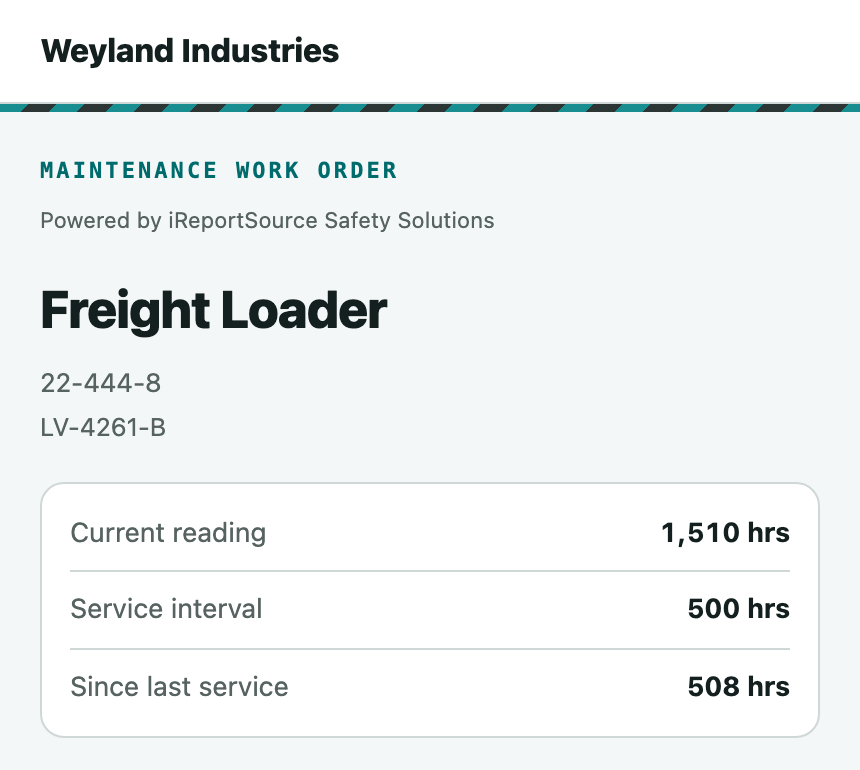
Open the maintenance work-order email and click the link. It opens a page with the equipment's name, model, serial and location at the top.
Review the summary card: Current reading, Service interval, and Since last service, so you know what the machine is due for. (On a repair, only the meter reading shows — the interval has nothing to do with the job.)
If the work is a repair rather than the scheduled service, a note near the top says so and confirms that filing it will not restart the service interval or change when the next service is due.
Checking what has been done before
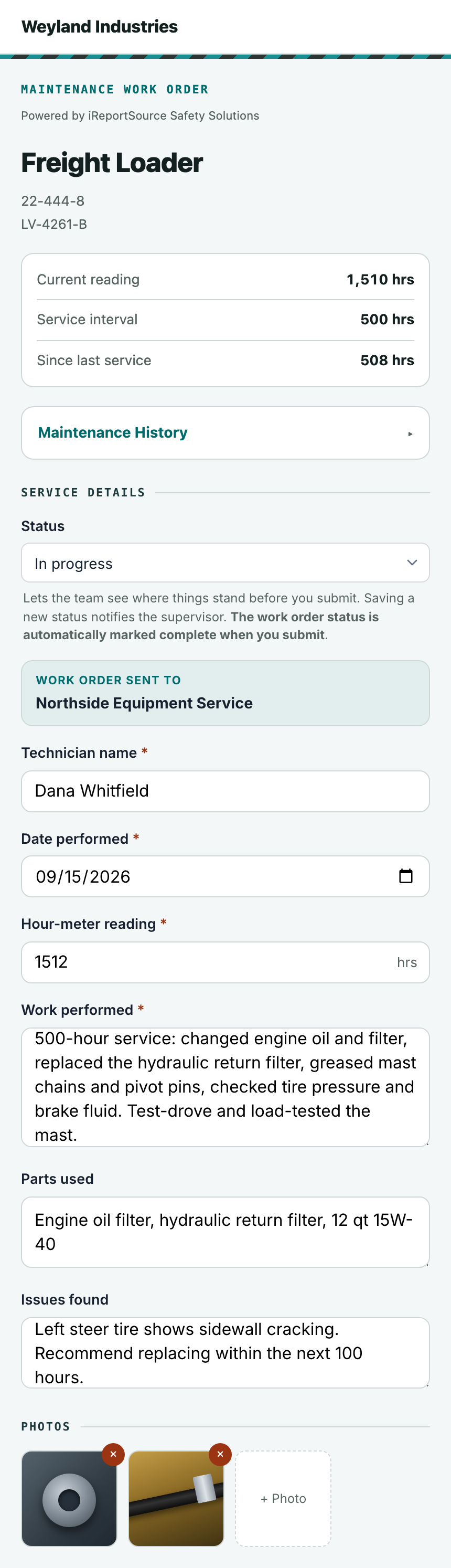
Above the form, Maintenance History expands to show the work already recorded on this machine, newest first — the kind of job, the date, the meter reading, and what was performed, used and noted. Names and photos are not shown on this page; ask the site contact if you need them.
Filling out the service details
Under Service details (or Repair details), complete the form. Required fields are marked with an asterisk.
Status — optionally set where things stand: Received, Scheduled, Parts ordered, On hold, In progress, or Awaiting invoice payment. This lets the team see progress before you submit, and saving a new status notifies the supervisor. The work order's status is set to complete automatically when you submit.
What was wrong (required, repairs only) — why you were called out. This is what the record gets read back by.
Work order sent to — not a field. Your company is already known, from the work order or from the company you picked when you scanned the code, so the page states it rather than asking again.
Technician name (required) — the person who did the work. Only the person; the company is the line above.
Date performed (required) — defaults to today; change it if the work was done earlier.
Hour-meter reading (required) — the machine's meter reading at the time of service.
Work performed (required) — what was inspected, serviced, or repaired.
Parts used and Issues found — optional notes.
Adding photos
Under Photos, tap + Photo to attach images (PNG or JPEG, up to eight). Use the × on a thumbnail to remove one.
Saving vs completing
There are two buttons at the bottom:
Save work order — saves your progress to the link without finishing it. No fields are required, so you can start now and come back to the same link later. If you changed the Status, saving is what tells the supervisor.
Complete work order — finishes the job and files the report. A confirmation appears first, telling you what will happen: on most units it sets the work order's status to Complete and sends the report to the team for review; on a unit that does not require review it says so, and the report is simply recorded. Once it goes through you see a Thank you screen with a reference number.
If the report is sent back
If a supervisor sends the work back for changes, the same link reopens with a Sent back for changes note explaining what to fix and your earlier answers pre-filled. Make the corrections and complete it again.
Good to know
The link is private to this work order. Once the report is completed (and until it is sent back), the page shows that the link is no longer available.
On most units, submitting does not restart the service schedule — that happens once a supervisor approves the work. On a unit set not to require approval it applies straight away, and the confirmation dialog tells you which one you are on.
A repair never restarts the service interval, whatever the unit's approval setting is.
The page is protected by reCAPTCHA to keep the login-less link secure.
If the site corrects something you wrote after the fact, the record is marked Corrected in the history — the values you see are the corrected ones. Who changed it and why are not shown on this page.