
Creating New Equipment Entries
Updated 10/15/2026
NOTE: Only Admins and Collaborators can add equipment
iReport allows for the tracking and updating of your company's individual equipment, from forklifts to trucks to welding machines and points in-between. This document outlines how to enter equipment by hand on the Web App. To add or update many items at once from a spreadsheet, see Uploading Equipment from a CSV File.
NOTE: You can enter equipment individually or upload many items at once from a CSV file.
NOTE: Collaborators can view the Company Level for all their assigned locations.
NOTE: Equipment can only be added via the Web App.
MANUAL EQUIPMENT ENTRY
1. Log into your iReportSource account at https://www.ireportapp.com/login
2. Select your location, or choose the Company Level.
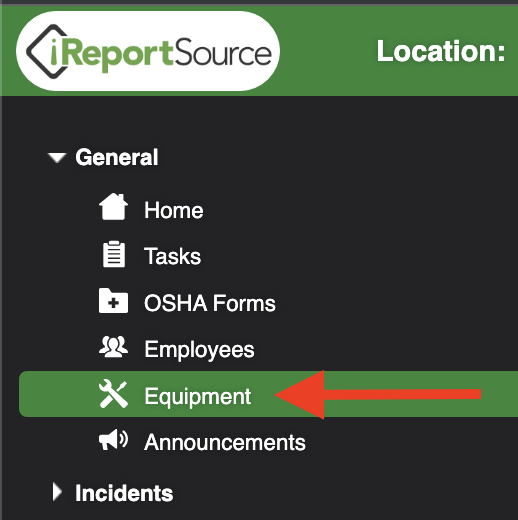
3. Go to General -> Equipment.
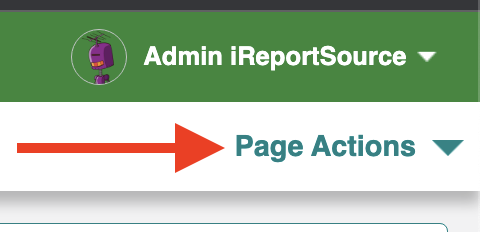
4. You will be taken to the Equipment page. In the top right corner is the Page Actions menu. Click on Create Equipment.
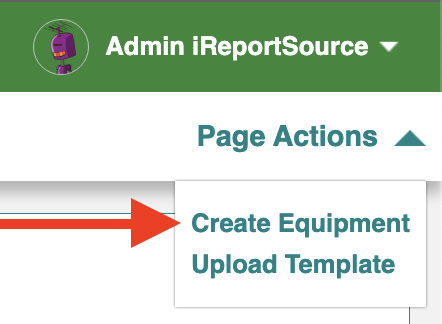
5. After selecting Create Equipment you will then fill in the equipment's information. The fields include:
Title (a Required field)
Example: Powered Lift #1234
Location (a Required field)
Example: Work Site #1
Group or Establishment (a Required field)
Admin only: When in at the Company level, you can select all available Group/Establishments if needed.
Collaborator users will only be able to select the Group/Establishment they are currently under.
Area
Populates once a Group/Establishment is chosen (if any are associated with the Group/Establishment)
Serial Number
Serial number or VIN number if applicable
Manufacturer
This is the Manufacturer of or Company that makes the piece of equipment
Model
Make/model of the equipment
Status
Choose between Operational, Service, Not Operational
Expiration Date
Used for consumable equipment such as Fire Extinguishers.
Manufacture Date
Date equipment was manufactured.
Attachments
You can upload photos (JPG or PNG only) or Video (MP4 only)
Documents
You can upload applicable documents such as manuals (PDF and Word Doc)
Safety Audits
You can select any number of Safety Audits already in iReport for use and direct tie-in with the equipment
Lockout/Tagout Procedures
Can tie company LOTO procedures to specific equipment for tracking.
Trainings
You can select any number of Safety Trainings already in iReport for use and direct tie-in with the equipment
6. Once you have filled in the information, just click the green Create button at the bottom of the page.
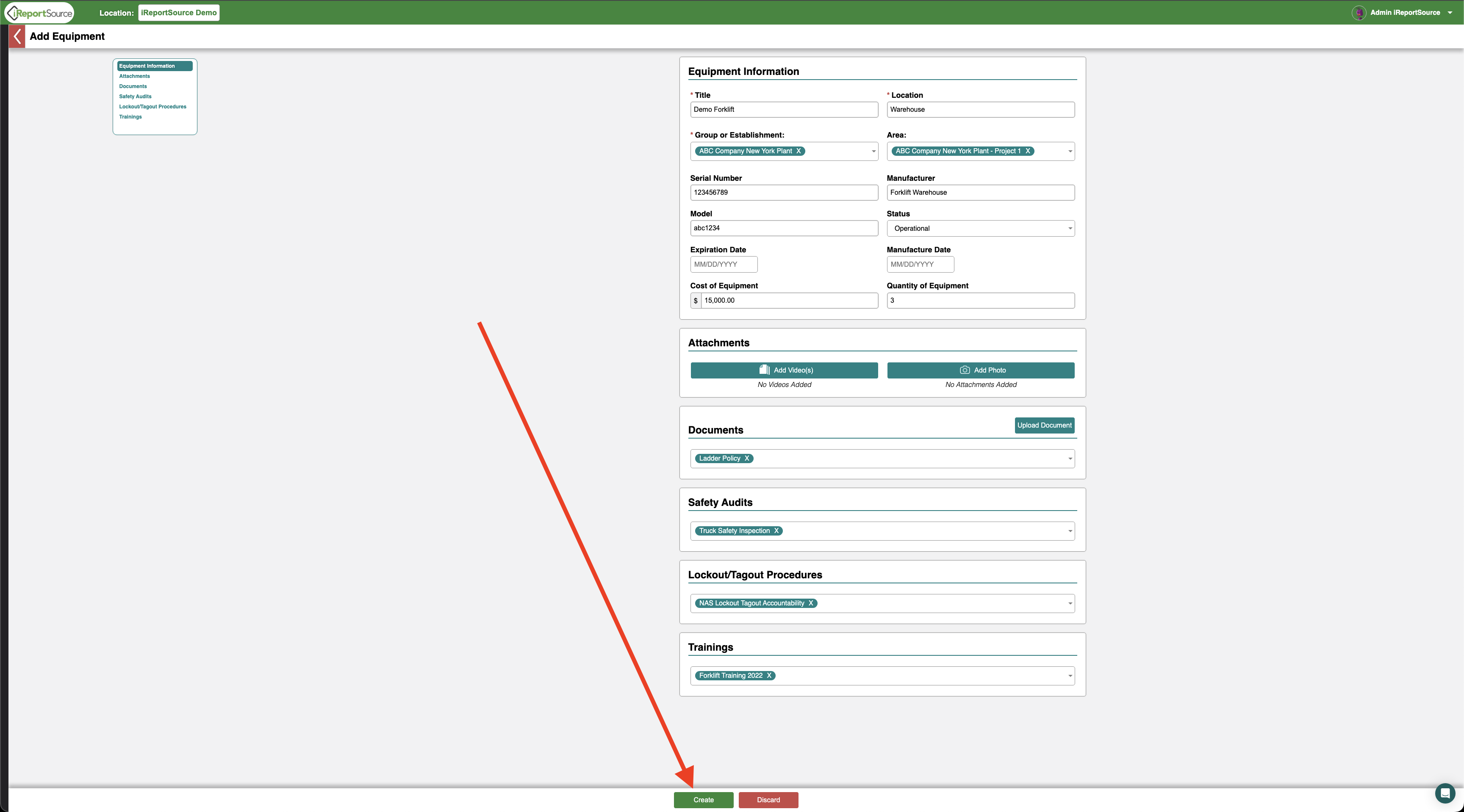
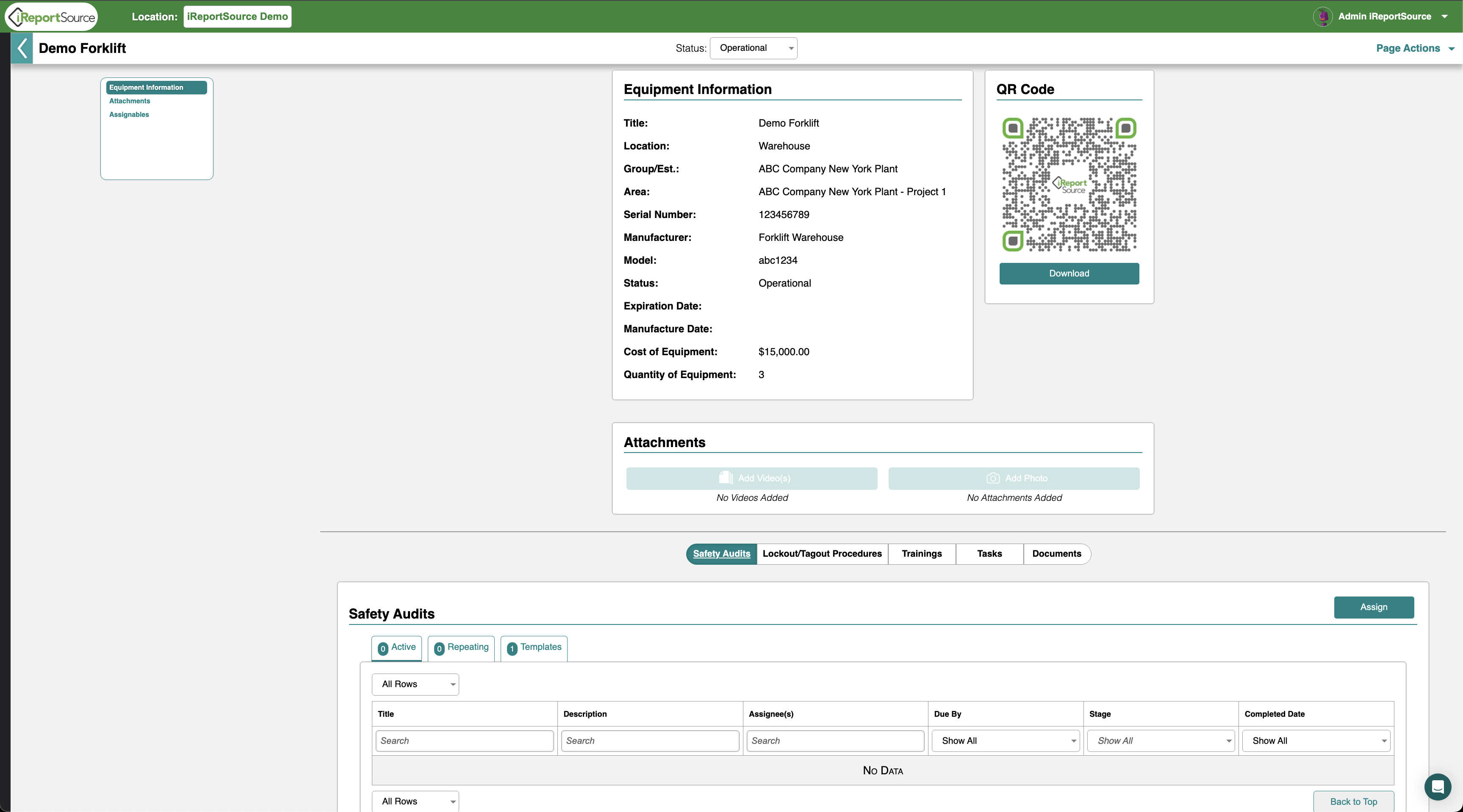
7. A completed equipment entry should look something like this:
UPLOADING EQUIPMENT FROM A CSV FILE
To add or update many items at once, use Upload Template on the Equipment page. The steps, every column in the template (including Preventive Maintenance), and how to fix upload errors are in Uploading Equipment from a CSV File.