
Performing Maintenance as an Internal Tech
When your own people service your equipment, they file the same write-up an outside company does — but signed in, so the work is recorded against their name. There are two ways in: a job that was dispatched to them lands in their My To-Dos, and a technician standing at a machine can start one themselves from the mobile app.
Starting a job nobody sent requires being on the company's Internal Techs list — see Managing Maintenance Providers and Internal Techs. Being dispatched a job does not: that is the unit's own Provider — internal staff list, set per unit.
A job that was sent to you
When a unit assigned to internal staff comes due and automatic work orders are on, everyone on that unit's staff list gets the job. It arrives two ways at once:
In My To-Dos, under a Maintenance heading. The row names the job — Service or Repair and the unit — and its details line carries the meter reading the service is due at and which yard the machine is in. Its due date comes from the unit's Due after ___ days setting (7 days if that is blank).
By email, as a link that asks you to sign in. Signing in takes you straight to the write-up, not to the dashboard.
On the mobile app the same jobs appear as a Maintenance card on the To-Do screen, which opens a list of them. The card is hidden when there is nothing waiting.

Starting a job yourself, from the app
In the mobile app, open the equipment record — scanning the machine's staff QR code inside the app is the quickest way.
Tap the Maintenance section.
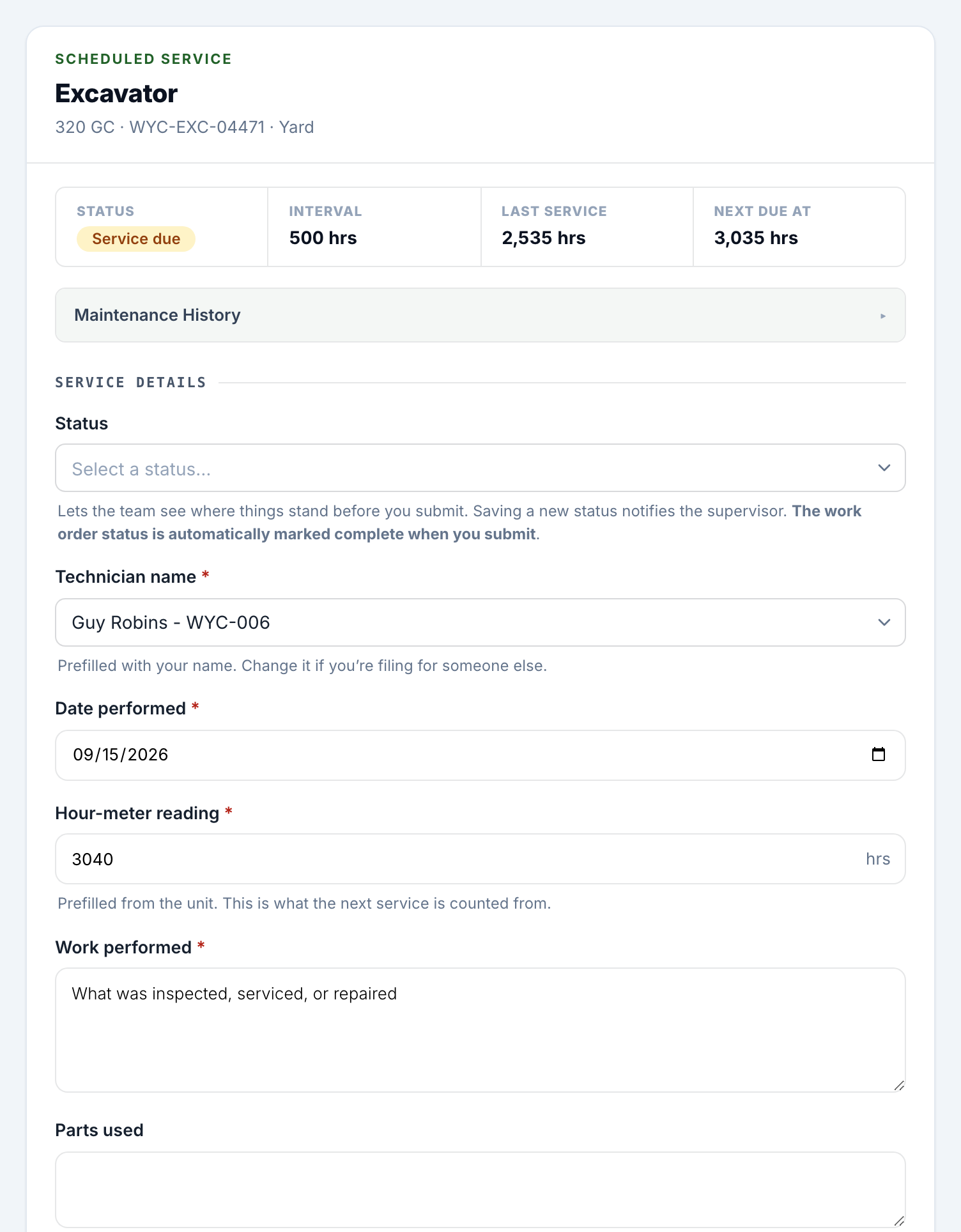
The hub opens on the unit's service state: Status (On schedule or Service due), Interval, Last service, and Next due at. If the unit is not on a service schedule it says so, and only the repair option is offered.
Choose what you are doing:
Start a service — records the scheduled service and restarts the counter once it is approved.
Report a repair — something broke. It does not touch the service schedule, and it is always available.
Maintenance History — what has been done to this machine before, with the record count beside it.
If a service is already open on the unit, the row becomes Continue the open service and a note explains that starting your own would create a second record for the same service. The same applies to a repair. The two are counted separately, so an open repair never blocks a service and an open service never blocks a repair.
Filling in the write-up
The fields are the same on the web and in the app, and the same ones an outside company sees:
Status — where things stand. Useful when the job was dispatched with a due date days out; saving a new status notifies the supervisor. The work order's status is set to complete automatically when you submit.
What was wrong (required, repairs only).
Technician name (required) — a picker over your staff, prefilled with your own name. Change it if you are filing for somebody else.
Date performed (required), Hour-meter reading (required, prefilled from the unit), Work performed (required), Parts used, Issues found.
Photos — up to eight.
Above the form, a strip shows the unit's service state, and Maintenance History expands to the full previous record — including names and outcomes, because you are signed in.
Saving vs submitting
Save work order — a work-in-progress save. It does not go anywhere for review, and it deliberately does not record Technician name if you never changed the prefill: that field is shared by everybody who can reach the work order, so a save asserting it would tell the next reader that a colleague had done the work.
Submit for review — sends it to the unit's Equipment Supervisor(s). On a unit that does not require approval the same button records the write-up straight away, with no review step, and the page says Recorded once it goes through.
If the write-up is sent back
A rejected write-up stays yours to finish. The page reopens with a Sent back badge and the supervisor's reason, your earlier answers and photos still in place. The rejection email links you back to the same signed-in page.
Good to know
The Maintenance section appears on a unit for anybody on the tech roster. Reading the Maintenance History alone is wider — Admins and Collaborators, anyone the unit names as internal maintenance staff, and anyone on the roster — and it shows on a unit that has records even if tracking was later switched off.
Access level is not what decides this. A Reporter can be a technician; an Admin who is not on the roster does not get the option.
Starting a service needs the unit to be on a schedule. A repair does not — a machine can break whether or not anyone set an interval for it.
If somebody assigned to a unit has a deactivated account but still has an email address, they get the no-login link instead of the signed-in one, exactly like an outside company. Their submission is recorded without a name attached to the account, which is the trade-off for their being able to file at all.
An assignee who can sign in but never has now has a login step they did not have before. They can set a password from their own email.