
Reviewing and Approving Maintenance Work
After a completed write-up is filed, the equipment's supervisors are asked to review it. Approving a scheduled service is what restarts the service counter and begins the next cycle; sending one back returns the provider to their link to make changes. A unit can also be set not to require approval at all, in which case a write-up applies the moment it is filed and the supervisors are simply told.
This is the last step of the Preventive Maintenance flow — see Setting Up Preventive Maintenance and Completing a Maintenance Work Order for the earlier steps.
Finding work that needs review
You are notified when a write-up is filed. There are three ways in:
From the notification email, click through to the review page.
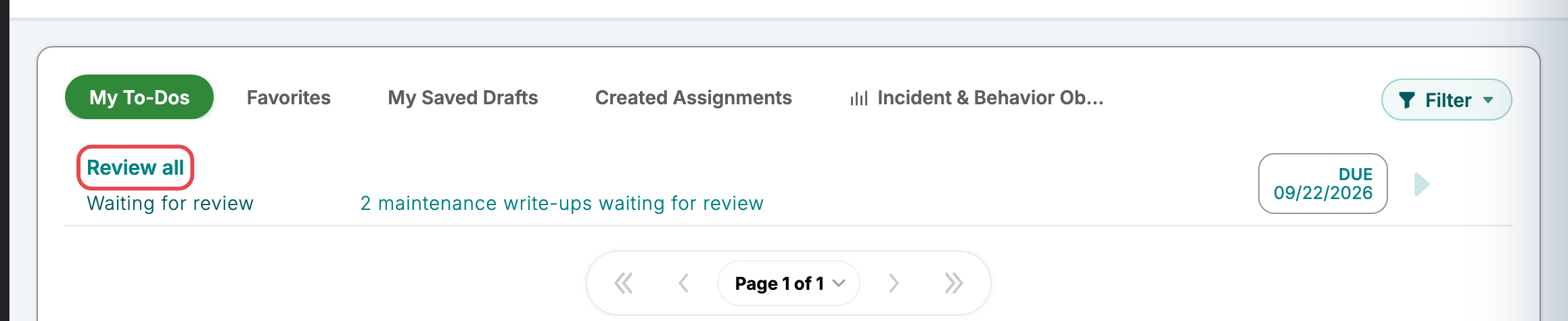
From your dashboard, open My To-Dos and look for the Maintenance Reviews heading. Everything waiting on you collapses into one row — Review all — which opens the queue.
From the equipment page itself: the Service Requests list on the Preventive Maintenance card opens any submitted, approved or rejected record.
The review queue
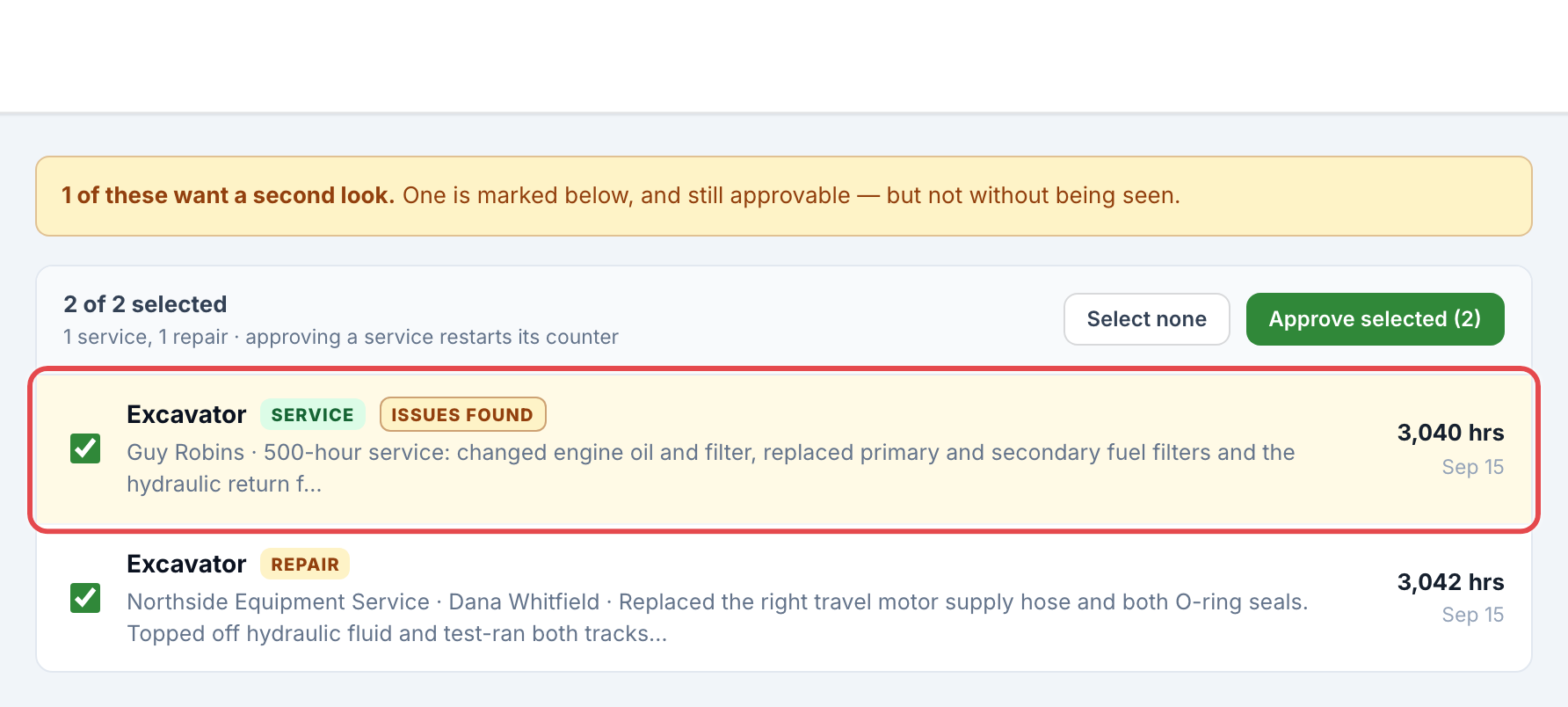
The Maintenance Reviews page lists everything waiting on you, everything selected on arrival, so the common case is one click. Each row shows the unit, a Service or Repair tag, the company and the technician, a one-line summary of the work, the meter reading, and the date.
Two things get a row marked for a second look, and a banner above the list counts them:
N intervals missed — more than one service came due while this job sat open.
Issues found — the provider noted something.
Marked rows are still approvable; they are marked, not blocked. Clicking a row expands it to show what was wrong, the work performed, the issues found, and when it was filed, with Open the full record to go to the individual review page.
Approve selected (N) confirms first, and the confirmation says exactly what will happen to each kind: scheduled services are accepted and each unit's counter restarts at the meter reading the provider entered, repairs are recorded and affect no schedule, and any rows marked for a second look are named. Each provider is thanked automatically. If one row cannot be approved — somebody else got to it first, for instance — the rest still go through and that one stays on the page with a reason.
Reviewing a single record
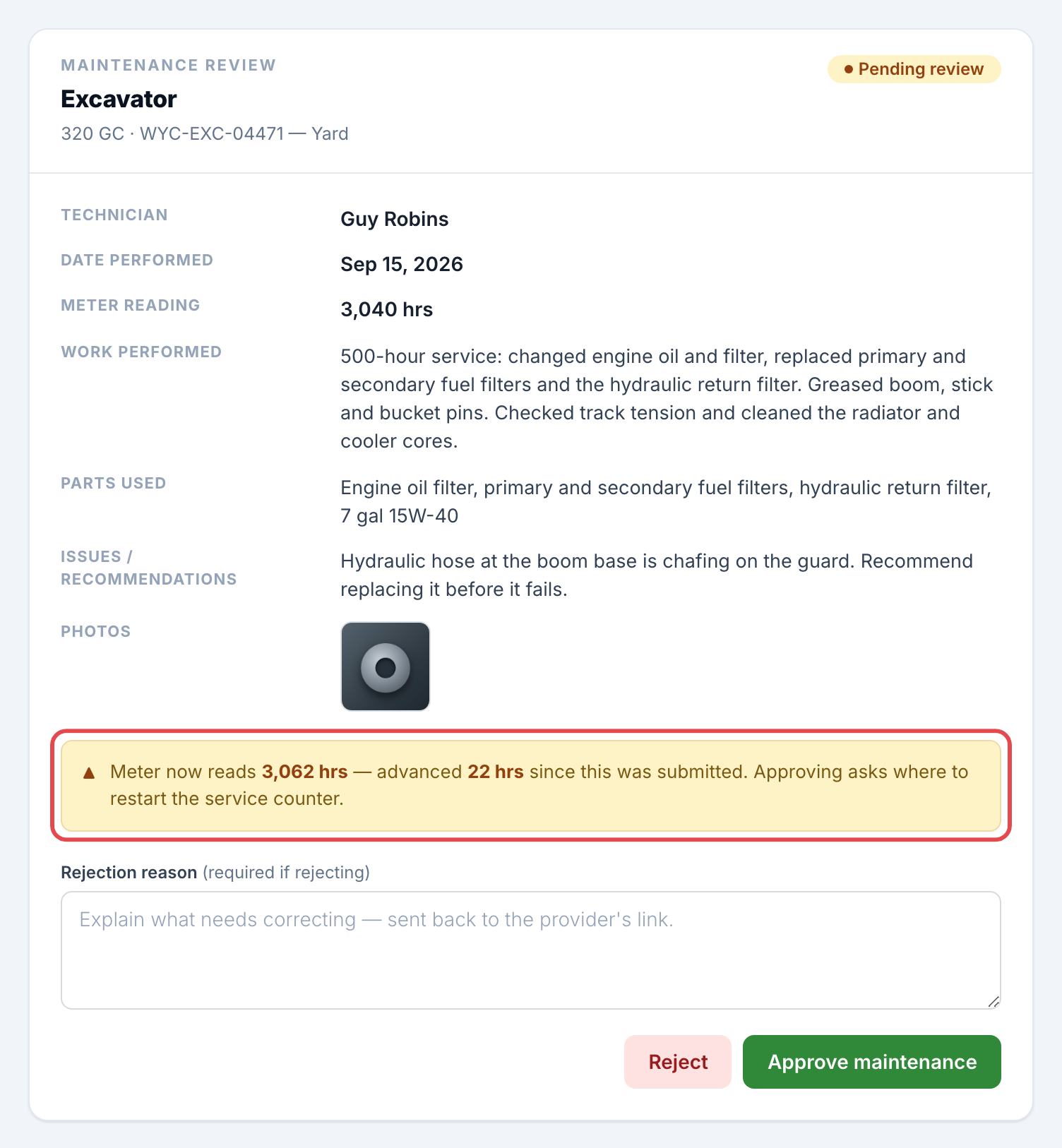
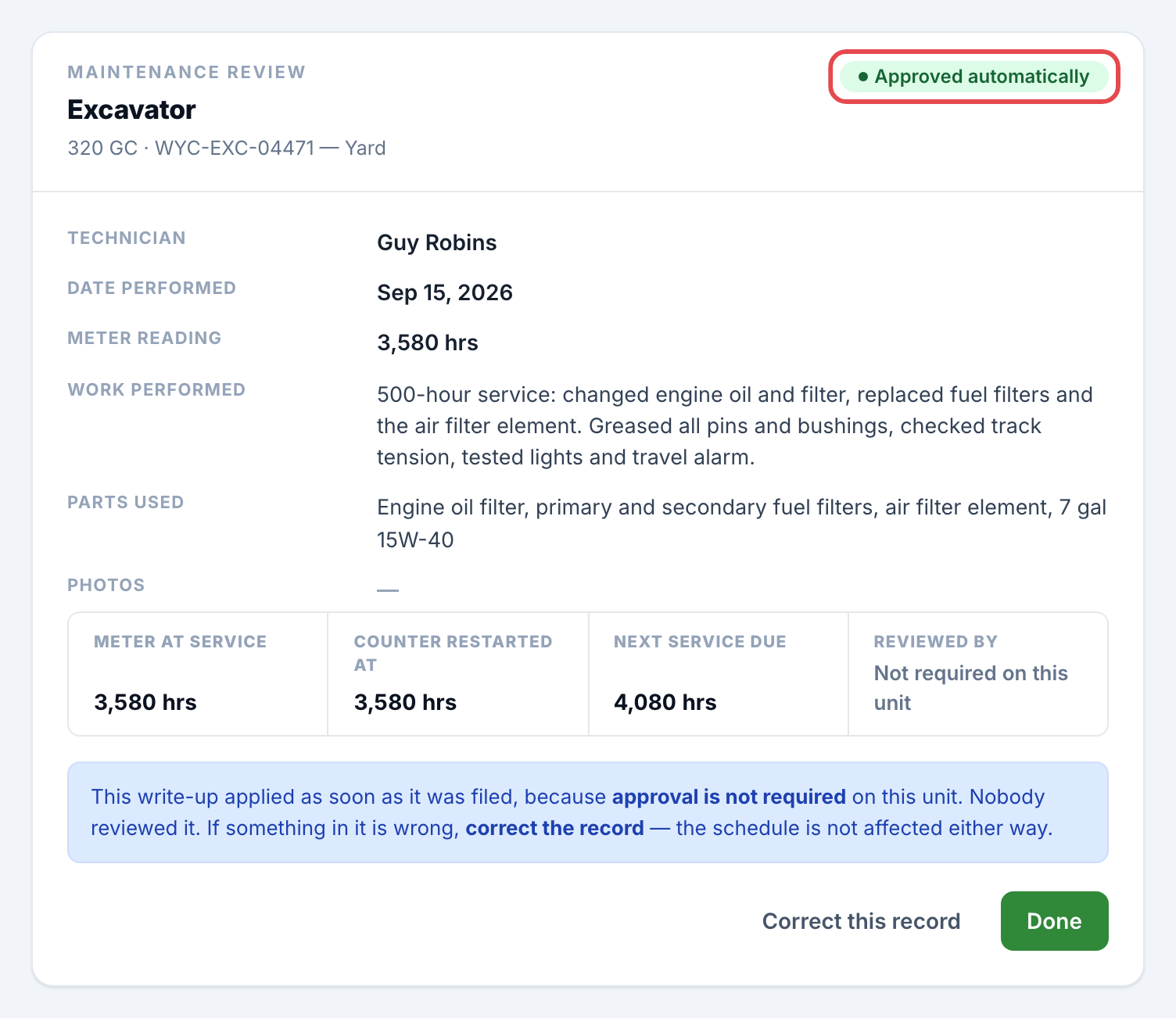
The review page is headed with the equipment's name and a status badge (Pending review, Approved, Approved automatically, Rejected, or Awaiting provider). Beneath it, read-only, is what was filed:
What was wrong (repairs only), Company, Technician, Date performed and Meter reading.
Work performed, and — when provided — Parts used and Issues / recommendations.
Photos, if any were attached; click a thumbnail to open it full size.
If the machine has run more hours since the write-up was filed, a highlighted note shows how far the meter has advanced. That matters when you choose where to restart the counter.
On a repair, a note above the details says plainly that this is not the scheduled service: approving it records the work and closes your To-Do, but does not restart the interval — and it names the reading the next service is still due at, or says the service is still outstanding if the unit is already past it.
Approving the work
Click Approve maintenance (or Approve repair).
If the meter has not moved since the write-up was filed, approval finishes right away — both reset choices would land on the same number, so there is nothing to pick. A repair never asks, because it has no counter to restart.
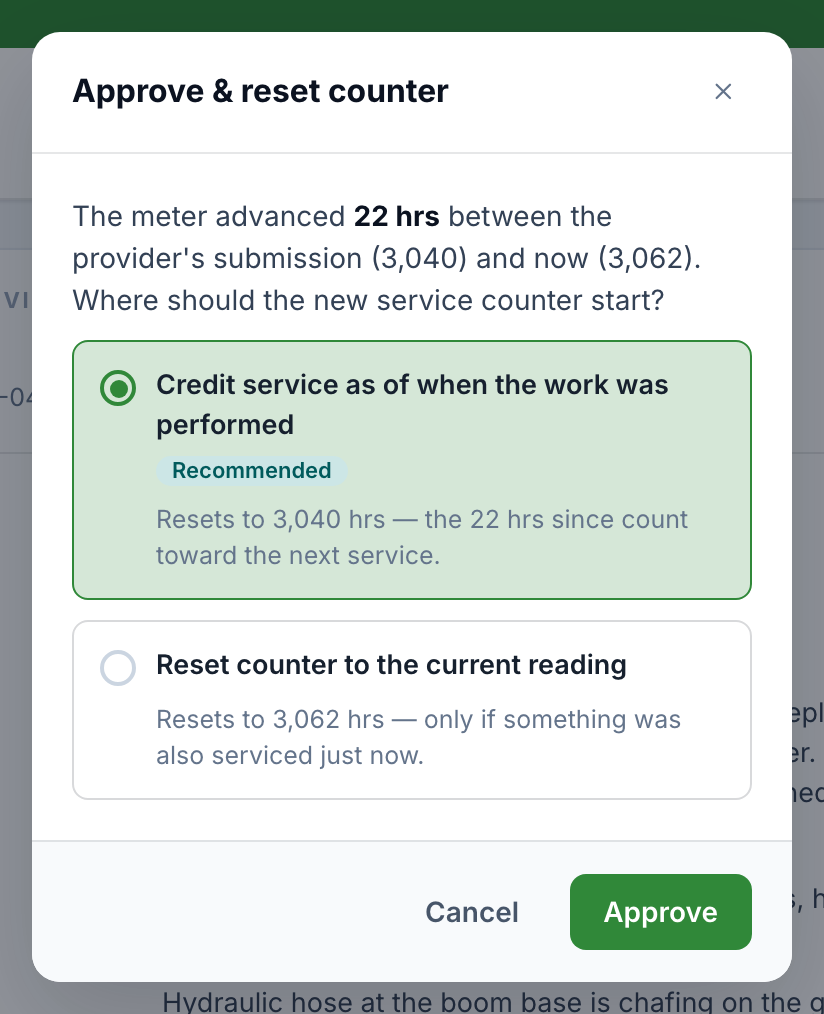
If the meter has advanced, an Approve & reset counter prompt asks where the new service counter should start:
Credit service as of when the work was performed (recommended) — resets to the reading on the write-up, so the hours run since then already count toward the next service.
Reset counter to the current reading — starts from the machine's current hours; use this only if something was also serviced just now.
Each option spells out the resulting reading.
Confirm with Approve. The service counter restarts, the record is marked approved, the unit returns to Operational, and the To-Do clears.
Sending the work back
If the write-up needs changes, enter a Rejection reason and click Reject. A reason is required. It is sent to whoever filed it, along with the link to correct and resubmit — the signed-in page if they can log in, the no-login link if they cannot. The service counter is not restarted when you reject.
When approval is not required
On a unit set not to require approval, a write-up applies the moment it is filed: the counter restarts, the unit returns to service, and nobody reviews it. You are still emailed — Service filed and applied, or Repair filed — and that notice is the only thing telling anyone the machine was serviced, which is why the Equipment Supervisor list stays required either way.
Opening such a record shows a read-back instead of Approve and Reject: Meter at service, Counter restarted at, Next service due, and Reviewed by: Not required on this unit, with a banner explaining what happened. If something in it is wrong, correct the record — the schedule is unaffected either way.
Reviewing on the mobile app
On mobile, a Maintenance Reviews card on the To-Do screen opens the list. Each card shows a Needs approval pill, the review's due date (in red once it is past), the unit, its Group and Area, and the company and technician. Tapping one opens the same read-only record with Approve and Reject; approving asks where to restart the counter in the same way. When more than one is waiting, Approve all N at the bottom clears the queue, with a confirmation that names what it will do to each kind.
Good to know
Approving is the only thing that restarts the schedule. A filed-but-unreviewed write-up leaves the equipment marked as due.
Approving a repair never restarts anything, whatever the unit's approval setting says.
Reviewers are the unit's Equipment Supervisor(s), set per unit under Preventive Maintenance. Admins and Collaborators can also open and act on a record. If a review is not in your To-Dos, you may not be assigned to that unit.
Once a record is approved or rejected, the action buttons are replaced by the outcome. An approved one gains Correct this record — see Correcting a Maintenance Record.
The counter only ever moves forward on approval. Approving an older write-up after a newer one has already been approved will not drag the schedule backward.