
Walk-Up Maintenance QR Codes
A walk-up Maintenance QR code is a sticker on the machine. Anybody standing at it — an outside company that turned up, or one of your own technicians — can scan it with a plain phone camera, say who they are here from, and file the service or repair they just did. There is no login and no app to install.
It is the counterpart to a dispatched work order. A work order is sent to somebody when service comes due; a walk-up code lets somebody start a job nobody sent them.
Turning it on
Edit the equipment item and open the Preventive Maintenance card.
Check Allow walk-up service by QR code, under the automatic-work-order checkbox.
Save. The code is created and appears on the equipment page.
The wording under the checkbox changes with the provider type, because who walks up is different: on a unit maintained by your own people it says your Internal Techs can scan it, and on a unit maintained by an outside company it says a maintenance company that turns up can.

Finding and printing the code
On the equipment view page the QR card holds both of the unit's codes as tabs:
QR Code — the original staff code. Scanned inside the iReportSource app to pull the equipment record up. A phone camera cannot read it.
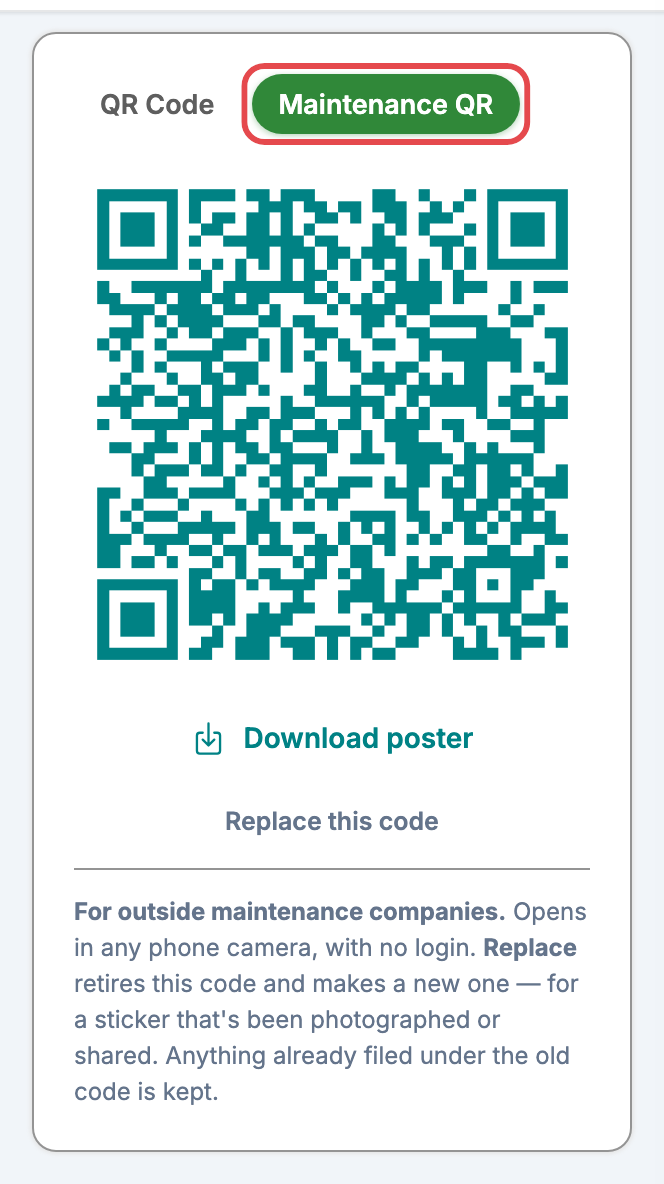
Maintenance QR — the walk-up code. Opens in any phone camera, with no login. This tab only appears once the code exists.
On the Maintenance QR tab, Download poster gives you a printable page to fit to the machine. Replace this code (Admins and Collaborators) retires the current code and issues a new one — for a sticker that has been photographed or shared. The old code stops working straight away, so print and fit the new poster before you leave. Everything already filed under the old code is kept.
If the unit is maintained by your own staff, the staff tab also says so outright, so the two codes do not get confused.
What the person scanning sees
Step one — the right machine, and who they are
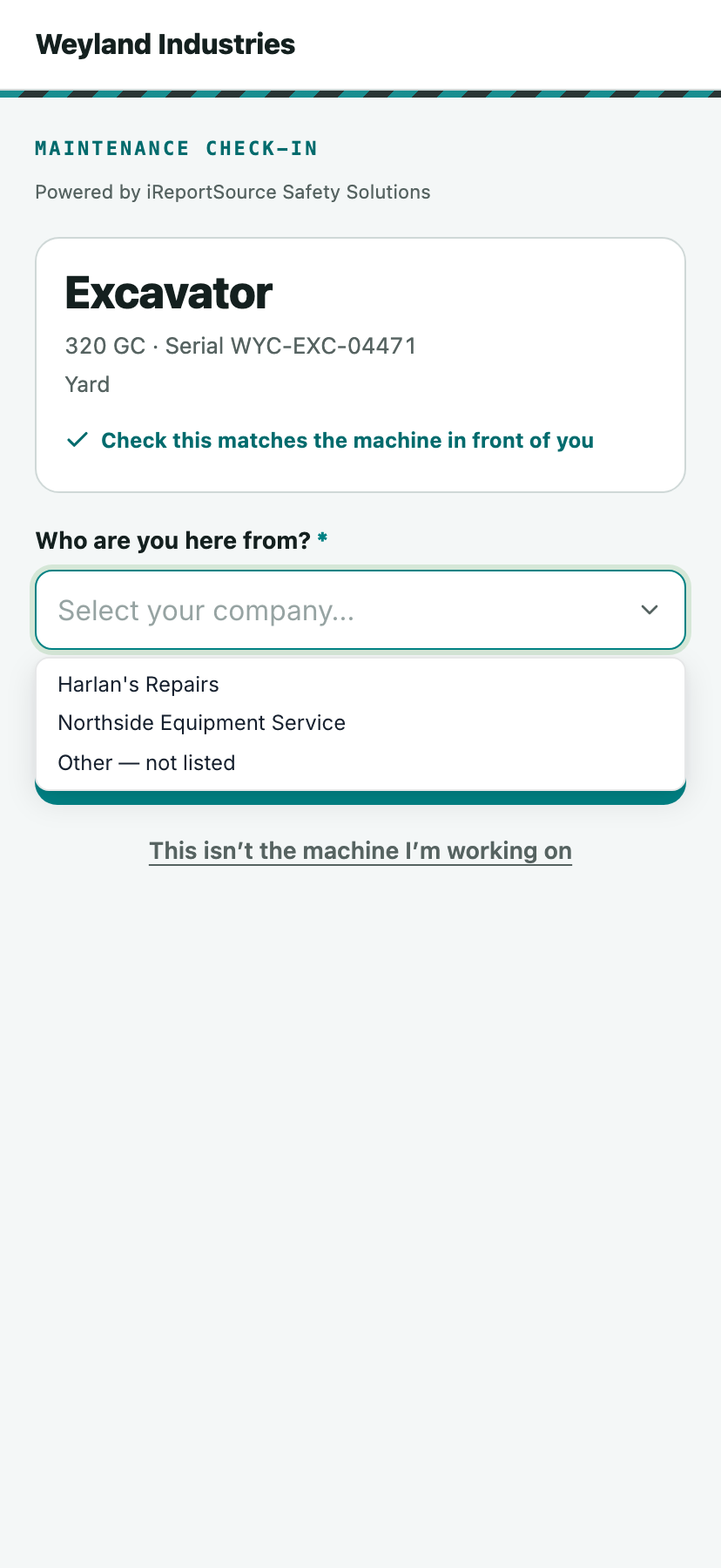
The page opens with the unit's name, model, serial and location, and a line asking them to check it matches the machine in front of them. Below that, Who are you here from? lists your active providers, plus Other — not listed for a subcontractor nobody has added yet. Picking Other reveals a company-name box; whatever they type is passed on as typed, with a note asking them to get added to your provider list for next time.
Whatever they pick is what shows on the record. A link at the bottom, This isn't the machine I'm working on, ends the visit with nothing recorded.
Step two — what they are here to do
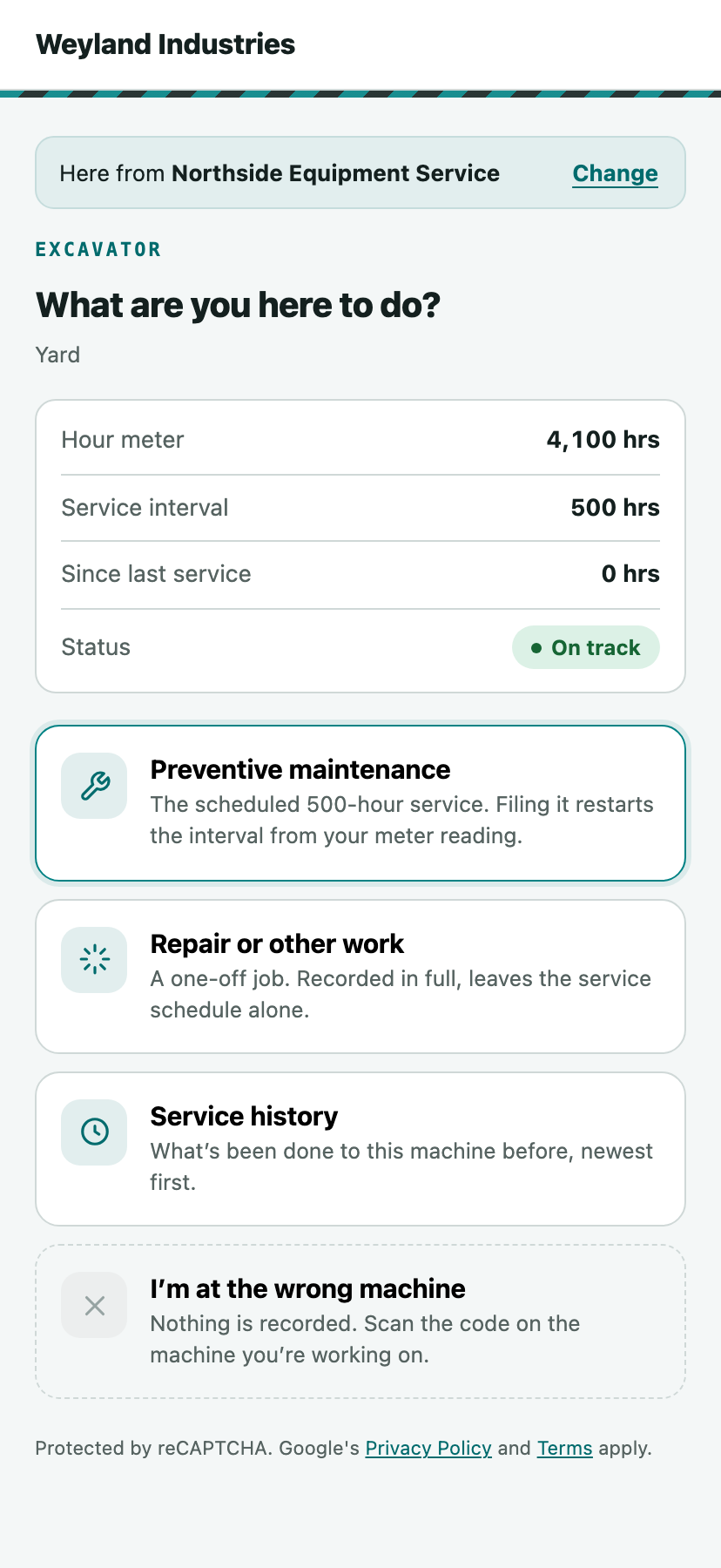
The next screen leads with the unit's service state — hour meter, service interval, hours since last service, and an On track or Service due chip — and then offers four options:
Preventive maintenance — the scheduled service. Filing it restarts the interval from their meter reading. If a maintenance request is already open on the unit, this row becomes Continue the open work order instead and the state panel is replaced by a note naming who it was sent to and when, so nobody starts a second record for the same service.
Repair or other work — a one-off job, recorded in full, leaving the service schedule alone. Always available, whatever the schedule's job is doing. If a repair is already open it becomes Continue the open repair.
Service history — what has been done to this machine before, newest first. See Maintenance History.
I'm at the wrong machine — nothing is recorded.
Choosing either of the first two opens the write-up form. From there it behaves exactly like the form a dispatched provider gets — see Completing a Maintenance Work Order.
Good to know
Turning the switch off does not kill the sticker. A printed code has to survive being switched off and back on, so the code is kept: off means the page stops resolving, and back on brings the same code to life. Replace this code is the only way to retire one for good.
Nobody is emailed when somebody scans the code. The write-up they file is what raises the notification.
An unavailable code — unknown, switched off, tracking off, the unit deleted, or the code replaced — shows one message asking them to check with the site contact. It never says which, and it withholds your company name, so a guessed address confirms nothing.
The public pages are protected by reCAPTCHA.
The walk-up code renders in a different colour from the staff code, so a machine wearing both stickers tells them apart at a glance.